How to Reassemble Fragmented Files in WinHex for Video Recovery
Fragmented files came up in the previous exercise, so this example focuses specifically on how to recover them.
You can browse all exercise files here: https://winhex.im0o.top/
What this exercise covers
- Reassembling a fragmented file with WinHex
- Another manual way to recover fragmented files
Example: merging file fragments with WinHex
Download the exercise:
2302102 - Use WinHex to merge fragmented files
Key concept
- Using WinHex to join fragmented files in the correct order
Recovery goal
Restore Terry_May_2296.mp4 so that it plays normally.
Extracting the exercise files
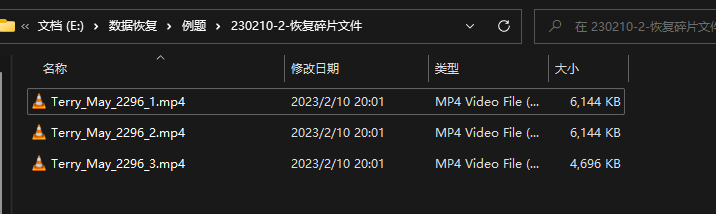
After downloading and extracting the archive, you will find three files:
Terry_May_2296_1.mp4Terry_May_2296_2.mp4Terry_May_2296_3.mp4
These three pieces are fragments of the same original file, so the task is to combine them back into one complete video.
Merging the fragments in WinHex
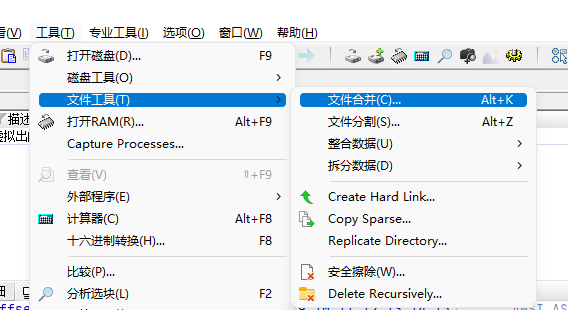
In the WinHex toolbar, go to Tools → File Tools → File Concatenation.
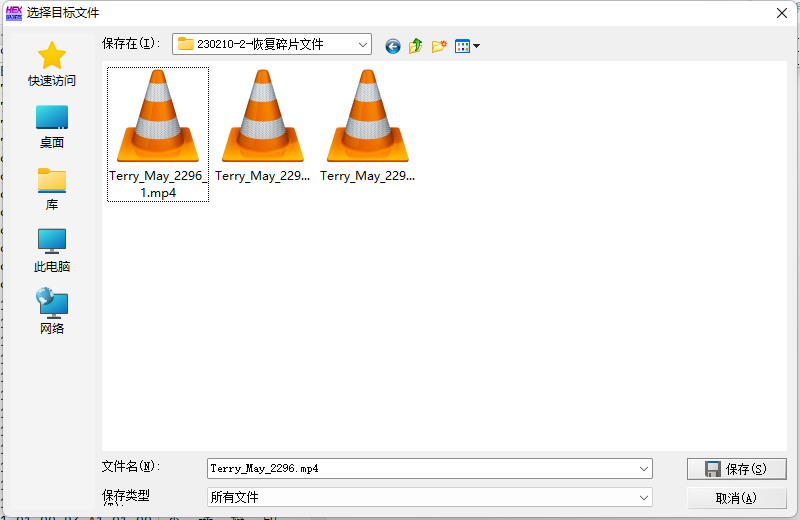
First choose where the merged output file should be saved. After confirming the save path, WinHex will automatically open a dialog asking for Source File #1. Select the first fragment, Terry_May_2296_1.mp4, then click Append.
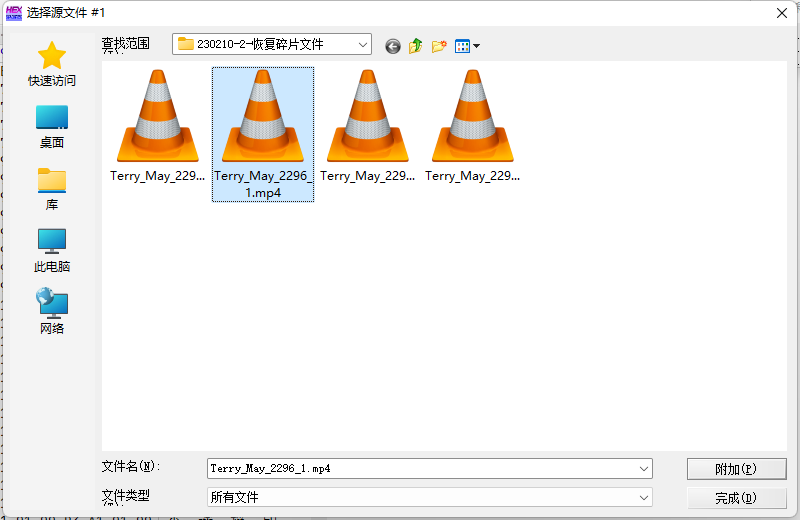
Then add the remaining fragments in order:
Terry_May_2296_2.mp4Terry_May_2296_3.mp4
Click Append after each one. Once there are no more fragments to add, click Done.
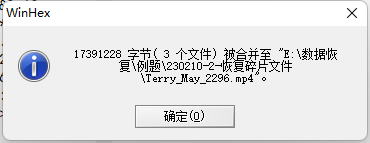
The merged file will be written to the path you selected. Open it and check whether it plays correctly.
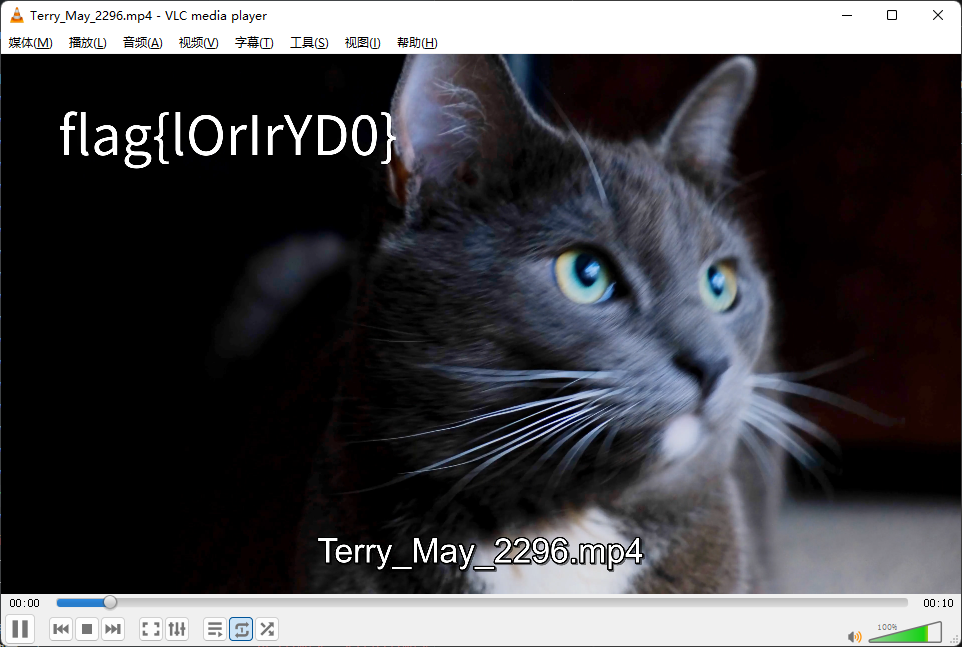
At this point, the file has been successfully restored and can be played normally.
Another way to recover fragmented files
WinHex also allows you to rebuild the file manually.
Start by creating a new file from the toolbar through File → New.
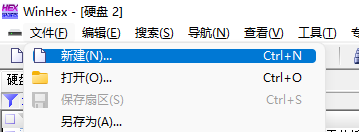
When the dialog appears, enter an appropriate size for the new file. This can be an estimated size.
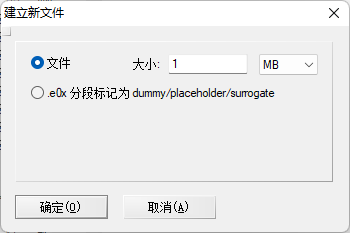
Next, copy the hexadecimal data from each fragment and paste it into the new file in WinHex, making sure the fragments are placed in the correct sequence.
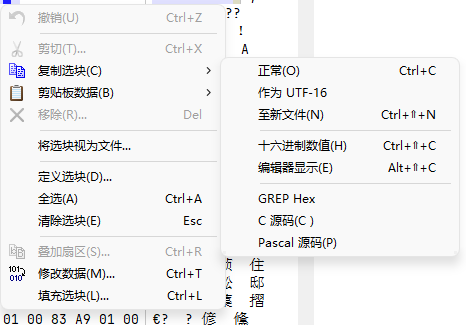
After all fragments have been pasted, select the entire file data, then right-click the selection and choose Edit → Copy Block → Into New File.