How to Build a Minimal OpenWrt Firmware for Your Router
I recently picked up a Newifi D2 and noticed the OpenWrt firmware preinstalled by the seller included a lot of features I did not need. Rather than keeping a bloated build, I decided to compile a much cleaner OpenWrt image myself.
Before you start
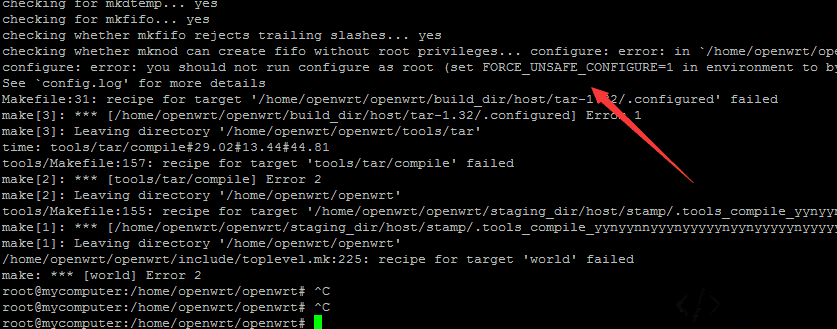
One thing is easy to overlook: downloading the source code and compiling should be done as a regular user, not in root mode. Otherwise, you may run into all kinds of strange build errors.
Setting up the build environment
You will need an Ubuntu system. I used Ubuntu 18.04. The installation process itself is not covered here.
After Ubuntu is ready, install the required dependencies. I had installed quite a few packages before compiling, so the list below is roughly what I used:
sudo apt-get update//更新
sudo apt-get install git-core g++ libncurses5-dev zlib1g-dev bison flex unzip autoconf gawk make gettext gcc binutils patch bzip2 libz-dev asciidoc subversion build-essential mercurial -y
sudo apt-get install build-essential subversion asciidoc libz-dev bzip2 patch binutils gcc gettext gawk make autoconf unzip flex bison zlib1g-dev libncurses5-dev g++ git-core mercurial -y
sudo apt-get install subversion build-essential libncurses5-dev zlib1g-dev gawk git ccache gettext libssl-dev xsltproc -y
Installing all of that takes about 20 minutes. Once it finishes, you can download the OpenWrt source.
There are two ways to get it. One is the official GitHub repository, and the other is a mirrored repository that can be faster if GitHub access is slow.
git clone https://github.com/openwrt/openwrt.git #官方Github
git clone https://gitee.com/mr-wu-code/openwrt #个人克隆的Git仓库
Next, update and install the feeds. This step usually takes around 10 minutes.
#如果我的目录和你的目录不同,记得改
cd openwrt #进入到目录
./scripts/feeds update -a
./scripts/feeds install -a
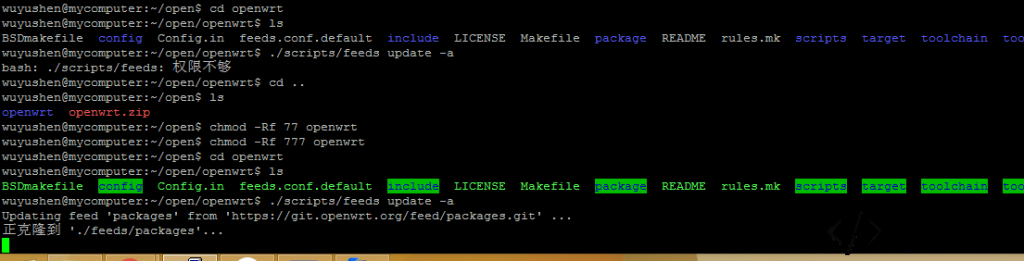
#如果出现权限不够错误,请回退到上一级目录,输入 chmod -Rf 777 openwrt
#cd回到openwrt目录后,ls目录看看,是不是像下面全绿,是的话重新执行上面的命令
If you run into a permissions error, go back to the parent directory and adjust permissions as shown above, then return to the openwrt directory and run the commands again.
Configuring the firmware
Open the configuration menu with:
make menuconfig
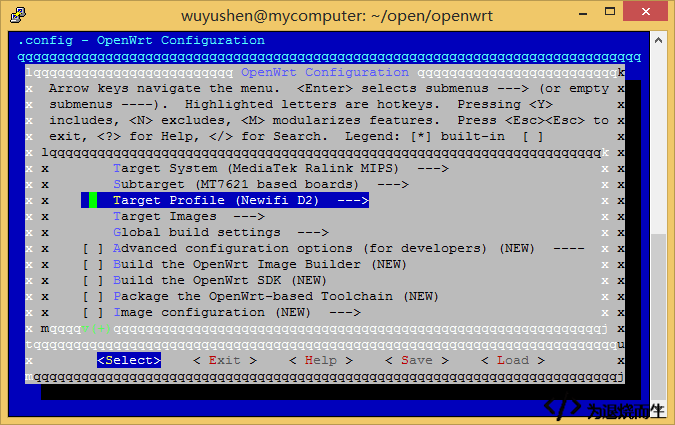
The most important options are these:
- Target System — choose the CPU family for your router.
- Subtarget — for some platforms, such as MediaTek, this appears to be a more specific CPU selection. On other platforms it may correspond more closely to flash or hardware variations. If your router should be supported and you selected the correct Target System but cannot find it under Target Profile, adjusting this option may help.
- Target Profile — choose your exact router model. If it is not listed, select the model that is closest to your hardware, especially one using the same CPU.
Inside the menu:
- Press Enter once and
[X]means the option is selected. - In LuCI, you can enable the web interface here:
LuCI ---> 1. Collections ---> luci....................... LuCIinterface with Uhttpd as Webserver (default)- To add Chinese language support:
LuCI ---> 2. Modules ---> Translations ---> Chinese (zh-cn)- Press Space once and
[M]means the package will be compiled but not built into the final firmware image. - Press Space twice and
[*]means it will be compiled and included in the firmware package.
Those are just the basic packages. You can choose the rest according to your own needs.
After finishing the selections, save and exit.
Starting the build
Run:
make V=99
This begins the compilation process.
For the first build, I do not recommend using V=99 -j3. If something fails, it is much harder to troubleshoot.
The first full compile can take around 12 hours. A second build may only take about 30 minutes.
If the build fails, the most common reason is a package download failure. Scroll through the output, find the package that failed to download, download it manually however you can, place it in the dl directory, and then run the build again.
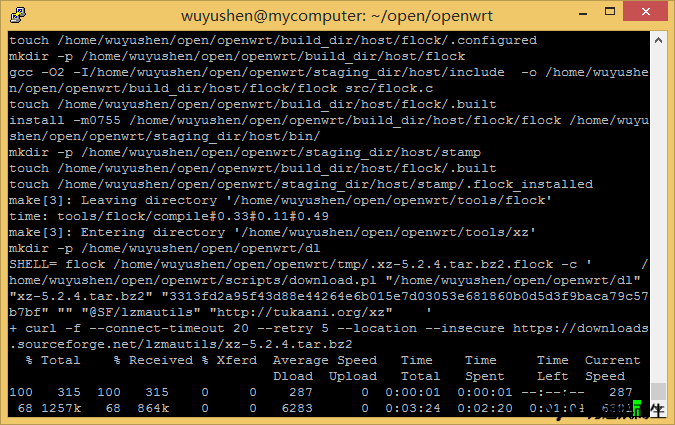
And then the build is underway:
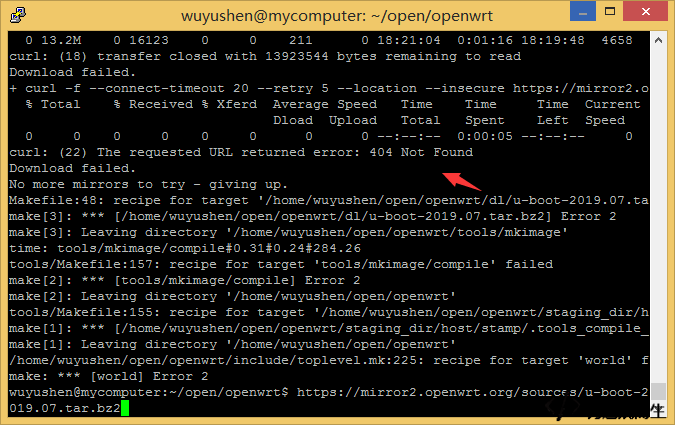
A common download error during compilation
Partway through the build, you may see a 404 error when downloading u-boot-2019.07.tar.bz2. I am not sure why that file returns 404, but if it happens, download it manually from the web, copy it into the openwrt/dl directory, and run:
make V=99
again.
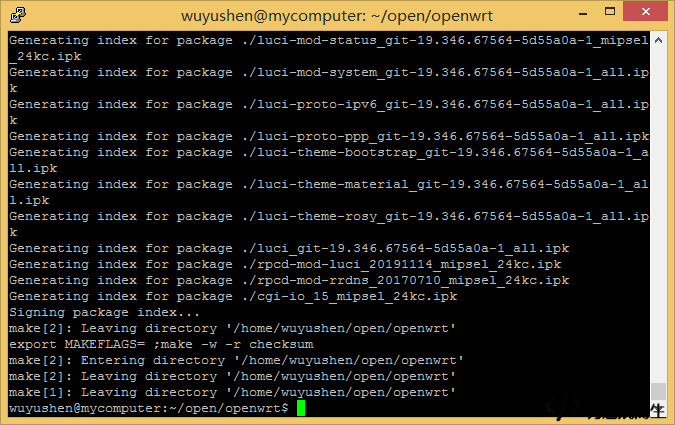
After a successful build
If you see the final successful output, your firmware has been compiled correctly and you can try flashing it to your router.
The finished files will be under a path like:
/bin/targets/ramips/mt7620/
That specific directory is for mt7620 targets. If you built for a different platform, check the corresponding target folder under bin/targets/.