How to Fix IIS 404.13 When File Uploads Exceed the Allowed Request Size
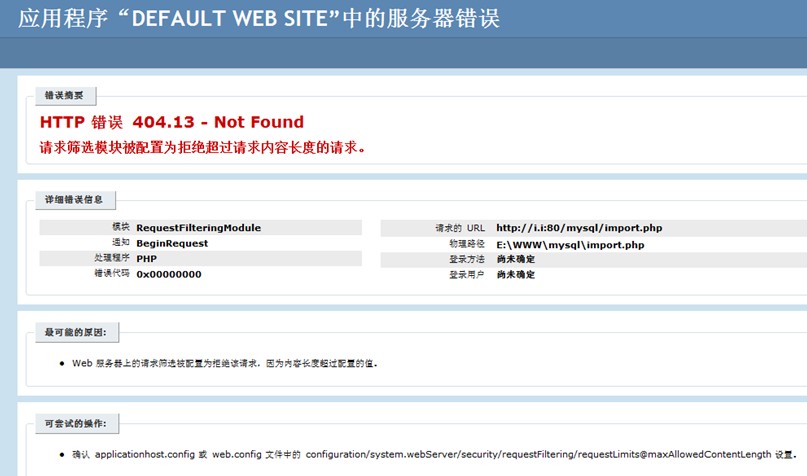
When IIS returns HTTP Error 404.13 - Not Found, it usually means the request filtering module has blocked the upload because the request body is larger than the configured limit.
On IIS 7, the default upload size limit is typically 30 MB, so larger files are rejected before the application can handle them.
How to raise the upload limit
There are three places worth checking.
1. Edit applicationhost.config
- File path:
%windir%/system32/inetsrv/config/applicationhost.config - Find the relevant node.
- Add the corresponding element under that node.
The upload limit can be increased to 2 GB. The source note also points out that this element does not exist by default under that node.
2. Add httpRuntime settings in web.config
Use the following configuration:
<configuration>
   <system.web>
     <httpRuntime maxRequestLength="2097151" executionTimeout="120"/>
   </system.web>
</configuration>
What these settings mean
The httpRuntime section controls how the ASP.NET HTTP runtime handles requests.
maxRequestLength: defines the maximum file upload size supported by ASP.NET.- The value is specified in KB.
- It acts as a buffer threshold limit for the input stream and can help reduce denial-of-service risks, such as users sending very large files to the server.
- The default value is 4096 (4 MB).
-
The maximum allowed value is 2097151K.
-
executionTimeout: defines the maximum number of seconds a request can run before ASP.NET automatically terminates it. - The default is 90 seconds.
- This timeout only applies when the
debugattribute in thecompilationelement is set toFalse. - To avoid interrupting debugging sessions, it is not recommended to set this timeout excessively high during debugging.
3. Add request filtering limits in web.config
Under the relevant node, add:
<security>
  <requestFiltering >
     <requestLimits maxAllowedContentLength="2147483647" ></requestLimits>
  </requestFiltering>
</security>
In the note above, maxAllowedContentLengt is described as being measured in BK.
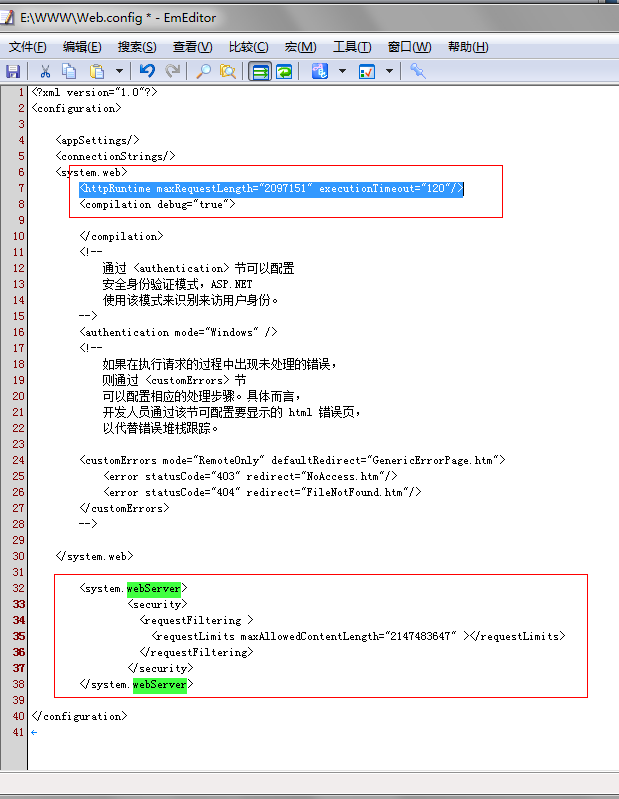
If a large upload still fails after changing only one setting, check both the ASP.NET runtime limit and the IIS request filtering limit. In practice, both may need to be adjusted together for larger file uploads to work normally.