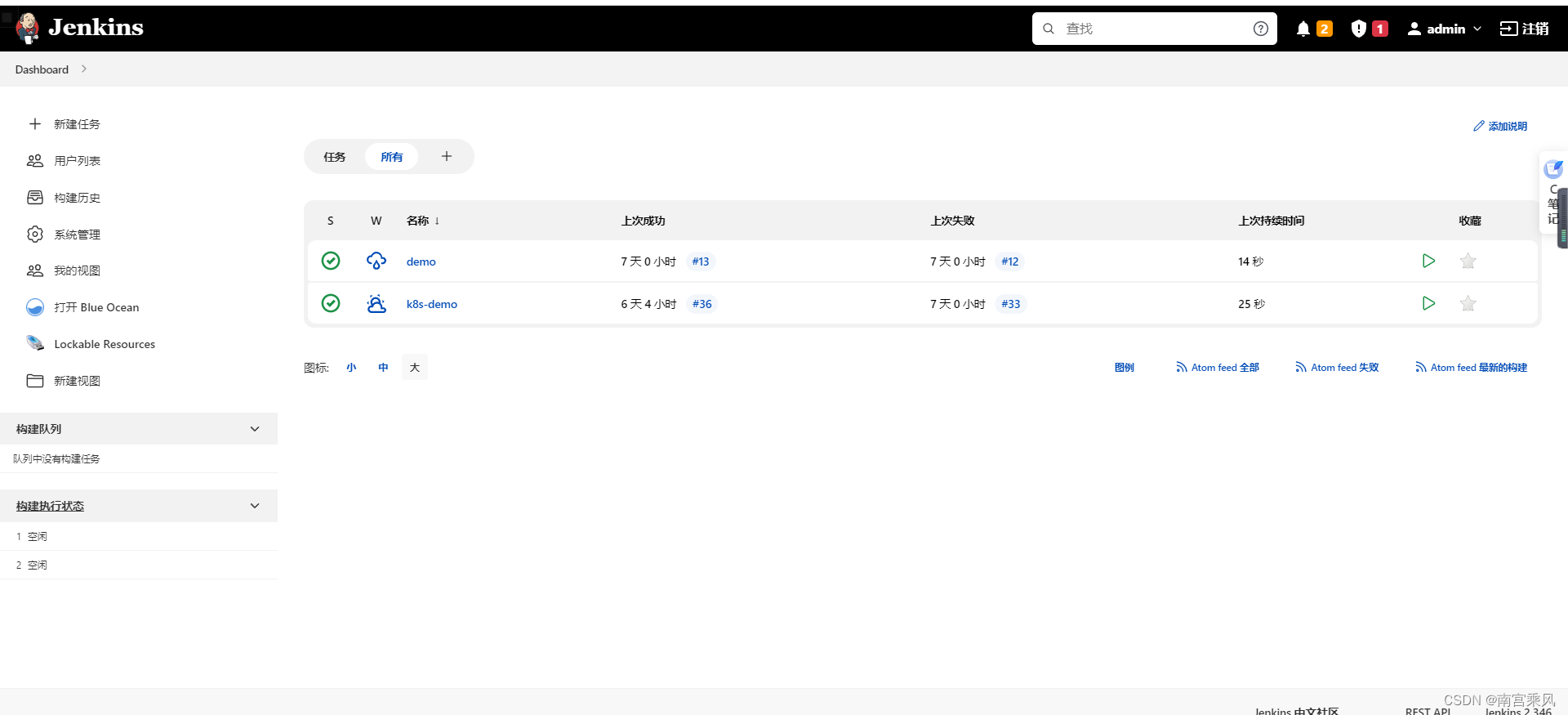
How to Deploy Jenkins on Kubernetes with NFS Persistent Storage
Running Jenkins on Kubernetes works especially well when you want build agents to scale dynamically inside the cluster. With the Jenkins Kubernetes plugin, each build can start its own Jenkins slave agent as a Pod and shut it down when the job finishes. When these agents start in Kubernetes, they automatically connect back to the Jenkins controller, and some environment variables are injected by default, including:
Jenkins_URL: the Jenkins web URLjenkins_secret: the authentication secretjenkins_agent_name: the agent namejenkins_name: the agent name (deprecated, kept for backward compatibility)
The Jenkins controller itself does not have to run inside Kubernetes, but this setup places Jenkins in the cluster and uses persistent storage so its data survives Pod recreation.
Environment requirements
This setup assumes:
- a working Kubernetes cluster
- at least 4 GB of available memory in the cluster
- Kubernetes version
1.18
Overall approach
The deployment process can be broken down into a few steps:
- Prepare NFS as dynamic storage
- Install
nfs-clientwith Helm - Create a dedicated namespace for Jenkins
- Persist Jenkins data with a PVC
- Create a service account with the required permissions
- Deploy Jenkins
- Expose the service externally
- Open Jenkins in the browser and complete the initial setup
1. Prepare NFS for dynamic storage
First install and configure the NFS server:
#安装
yum install -y nfs-utils rpcbind
mkdir -p /data/nfsdata
# 修改配置
$ vim /etc/exports
/data/nfsdata 192.168.31.* (rw,async,no_root_squash)
# 使配置生效
$ exportfs -r
# 服务端查看下是否生效
$ showmount -e localhost
Export list for localhost:
/data/nfsdata (everyone)
This exports /data/nfsdata so the Kubernetes cluster can use it as shared storage.
2. Install nfs-client with Helm
Add the chart source first:
stable https://kubernetes.oss-cn-hangzhou.aliyuncs.com/charts helm添加这个源
Then download and unpack the chart, and adjust values.yaml:
下载helm包
helm pull aliyuncs/nfs-client-provisioner
解压
tar -zxvf nfs-client-provisioner-1.2.8.tgz
修复values.yaml 三处
image:
  repository: quay.io/external_storage/nfs-client-provisioner
  tag: v3.1.0-k8s1.11
  pullPolicy: IfNotPresent
nfs:
  server: 192.168.31.73
  path: /data/nfsdata
reclaimPolicy: Retain

The key values here are the NFS server address, exported path, and Retain reclaim policy.
3. Create a namespace for Jenkins
Keeping Jenkins isolated in its own namespace makes management easier:
kubectl create namespace jenkins
kubectl get namespaces
4. Persist Jenkins data
Jenkins should not store its home directory in ephemeral container storage. Create a PVC so /var/jenkins_home survives Pod restarts.
pvc.yaml
apiVersion: v1
kind: PersistentVolumeClaim
metadata:
  name: jenkins-pvc
  namespace: jenkins
spec:
  storageClassName: "nfsdata"
  accessModes:
    - ReadWriteMany
  resources:
    requests:
      storage: 10Gi
Apply it with kubectl:
kubectl apply -f pvc.yaml
This claim requests 10Gi of storage and uses the nfsdata storage class with ReadWriteMany access.
5. Create a service account
If a Pod is created without an explicit service account, Kubernetes assigns the default service account from the same namespace. In practice, that often does not provide enough permissions, so Jenkins should use a dedicated account.
One option is to download the predefined file:
wget https://raw.githubusercontent.com/jenkins-infra/jenkins.io/master/content/doc/tutorials/kubernetes/installing-jenkins-on-kubernetes/jenkins-sa.yaml
Then apply it:
kubectl apply -f jenkins-sa.yaml
You can also use the following jenkins-sa.yaml:
---
apiVersion: v1
kind: ServiceAccount
metadata:
  name: jenkins
  namespace: jenkins
---
apiVersion: rbac.authorization.k8s.io/v1
kind: ClusterRole
metadata:
  annotations:
    rbac.authorization.kubernetes.io/autoupdate: "true"
  labels:
    kubernetes.io/bootstrapping: rbac-defaults
  name: jenkins
rules:
  - apiGroups:
      - '*'
    resources:
      - statefulsets
      - services
      - replicationcontrollers
      - replicasets
      - podtemplates
      - podsecuritypolicies
      - pods
      - pods/log
      - pods/exec
      - podpreset
      - poddisruptionbudget
      - persistentvolumes
      - persistentvolumeclaims
      - jobs
      - endpoints
      - deployments
      - deployments/scale
      - daemonsets
      - cronjobs
      - configmaps
      - namespaces
      - events
      - secrets
    verbs:
      - create
      - get
      - watch
      - delete
      - list
      - patch
      - update
  - apiGroups:
      - ""
    resources:
      - nodes
    verbs:
      - get
      - list
      - watch
      - update
---
apiVersion: rbac.authorization.k8s.io/v1
kind: ClusterRoleBinding
metadata:
  annotations:
    rbac.authorization.kubernetes.io/autoupdate: "true"
  labels:
    kubernetes.io/bootstrapping: rbac-defaults
  name: jenkins
roleRef:
  apiGroup: rbac.authorization.k8s.io
  kind: ClusterRole
  name: jenkins
subjects:
  - apiGroup: rbac.authorization.k8s.io
    kind: Group
    name: system:serviceaccounts:jenkins
This grants the Jenkins service account broad access to common Kubernetes resources so it can work with dynamic agents and related workloads.
6. Deploy Jenkins
Create the Jenkins Deployment and mount the persistent volume at /var/jenkins_home.
jenkins-deployment.yaml
apiVersion: apps/v1
kind: Deployment
metadata:
  name: jenkins
  namespace: jenkins
spec:
  replicas: 1
  selector:
    matchLabels:
      app: jenkins
  template:
    metadata:
      labels:
        app: jenkins
    spec:
      serviceAccountName: jenkins #指定我们前面创建的服务账号
      containers:
        - name: jenkins
          image: registry.cn-hangzhou.aliyuncs.com/s-ops/jenkins:2.346
          ports:
            - containerPort: 8080
            - containerPort: 50000
          volumeMounts:
            - name: jenkins-home
              mountPath: /var/jenkins_home
      volumes:
        - name: jenkins-home
          persistentVolumeClaim:
            claimName: jenkins-pvc #指定前面创建的PVC
Deploy it:
kubectl create -f jenkins-deployment.yaml -n jenkins
This runs a single Jenkins replica using image registry.cn-hangzhou.aliyuncs.com/s-ops/jenkins:2.346 and exposes ports 8080 and 50000 inside the container.
7. Expose Jenkins for external access
To access Jenkins from outside the cluster, expose the service with NodePort. In this setup, port 31400 maps to Jenkins web port 8080.
jenkins-service.yaml
apiVersion: v1
kind: Service
metadata:
  name: jenkins
  namespace: jenkins
spec:
  type: NodePort
  ports:
    - name: http
      port: 8080
      targetPort: 8080
      nodePort: 31400
    - name: agent
      port: 50000
      targetPort: 50000
      nodePort: 31401
  selector:
    app: jenkins
Apply the service:
kubectl create -f jenkins-service.yaml -n jenkins
Now Jenkins is reachable through IP:31400, and the agent port is exposed on 31401.
8. Open Jenkins and get the initial password
After the Pod starts, open the browser and visit:
IP:31400/
To retrieve the initial admin password, first find the Jenkins Pod and then check its logs:
kubectl get pod -n jenkins //查询podname
kubectl logs podname -n jenkins
*************************************************************
Jenkins initial setup is required. An admin user has been created and a password generated.
Please use the following password to proceed to installation:

cf8d9da9de0346fd90461be366915d76

This may also be found at: /var/jenkins_home/secrets/initialAdminPassword
*************************************************************
You can use that password to unlock Jenkins, choose the recommended plugins, create the administrator account, and finish the setup.