How to Open the D Drive from CMD in Windows
In Windows, opening the D drive is usually as simple as clicking it in “Computer” or “This PC.” But when you are working in Command Prompt, you can also switch to the D drive, browse its files, and enter folders with a few basic commands. The examples below use Windows 7-style steps, but the same Command Prompt commands are commonly used in Windows command line work as well.
Open Command Prompt and switch to the D drive
Press Win + R on the keyboard to open the Run window, type cmd, and press Enter. This opens the Command Prompt window.
To enter the root directory of the D drive, type:
d:
After pressing Enter, the prompt switches to the D drive. At this point, CMD only changes the current drive; it does not automatically list the files on that drive.
To view the files and folders under the D drive, use:
dir
The dir command displays the names of the files and folders in the current directory.
Enter a folder on the D drive
If the folder you want to open is on the D drive, for example a folder named soft, first switch to the D drive:
d:
Then enter the folder with:
cd soft
Press Enter, and CMD will move into that folder. If you want to check what files are inside it, run:
dir
These are some of the most basic CMD operations, but they are enough for moving between drives, entering directories, and checking file names.
Why cd d: may not enter the D drive as expected
A common problem is trying to switch drives with cd d:. For example:
cd d:
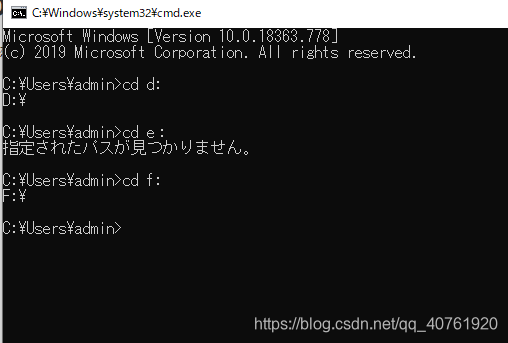
Sometimes it looks like the command has entered the D drive, but the next prompt may still jump back to another drive, such as F. In this situation, add /d to the command:
cd /d d:
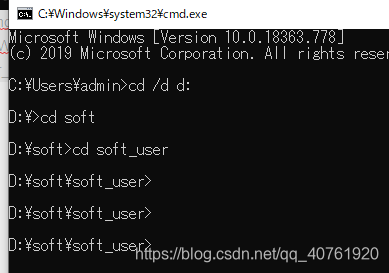
With /d, CMD not only changes the directory but also switches the drive, so you can enter the D drive and continue accessing folders under that drive.
Entering a path that contains spaces
Another issue appears when a directory name contains spaces. In Windows command line, entering such a path directly may cause an error.

The solution is to wrap the part of the path that contains spaces in English double quotation marks. For example:
cd C:\"Program Files"\Google\Chrome\Application

After quoting the directory name with spaces, CMD can correctly recognize the path and enter the target folder.