Using FnOS on a Budget Storage VPS: A Practical Setup for Anime Downloads and Media Streaming
Why I even tried this
Lately, most of my free time has gone into random side projects, gacha games, and anime. The anime part is where things get annoying if you’re the kind of person who doesn’t spend much. Cheap ways to watch often come with tradeoffs: bad sources, traditional Chinese subtitles only, weak video quality, poor translations, or endless buffering.
Tools like Animeko and Kazumi do help, but the experience really depends on the source sites behind them. Sometimes the content quality is all over the place, and sometimes you’re just staring at a loading spinner.
I’m not completely unfamiliar with BT and resource sites, but the environment for torrenting isn’t exactly ideal where I am. I also can’t keep my own hardware running 24/7 for downloading and seeding, my bandwidth isn’t great, and buying a physical NAS isn’t really in budget.
While casually browsing VPS and IDC deals, I came across a pretty decent large-storage VPS: 2 cores, 2 GB RAM, and a 500 GB disk. After manually setting up Caddy and qBittorrent on it, I got tired of managing everything by hand. Mostly because I’m lazy.
So the question became: is there something NAS-like that can make a VPS easier to manage?
Turns out there is. I had seen scripts for installing FnOS onto a VPS before, back when I was reinstalling systems on VPS boxes more often, but I never had the right storage-heavy machine to try it. Since FnOS already has a reputation as a low-cost NAS option, this finally felt like a good time to test it.
What FnOS is, and what kind of machine it fits
FnOS is a NAS operating system from China. It isn’t a fully homegrown system in the strict sense, because under the hood it’s basically a Debian-based distribution. It’s also not open source, so if that matters a lot to you, that may be reason enough to stop here.
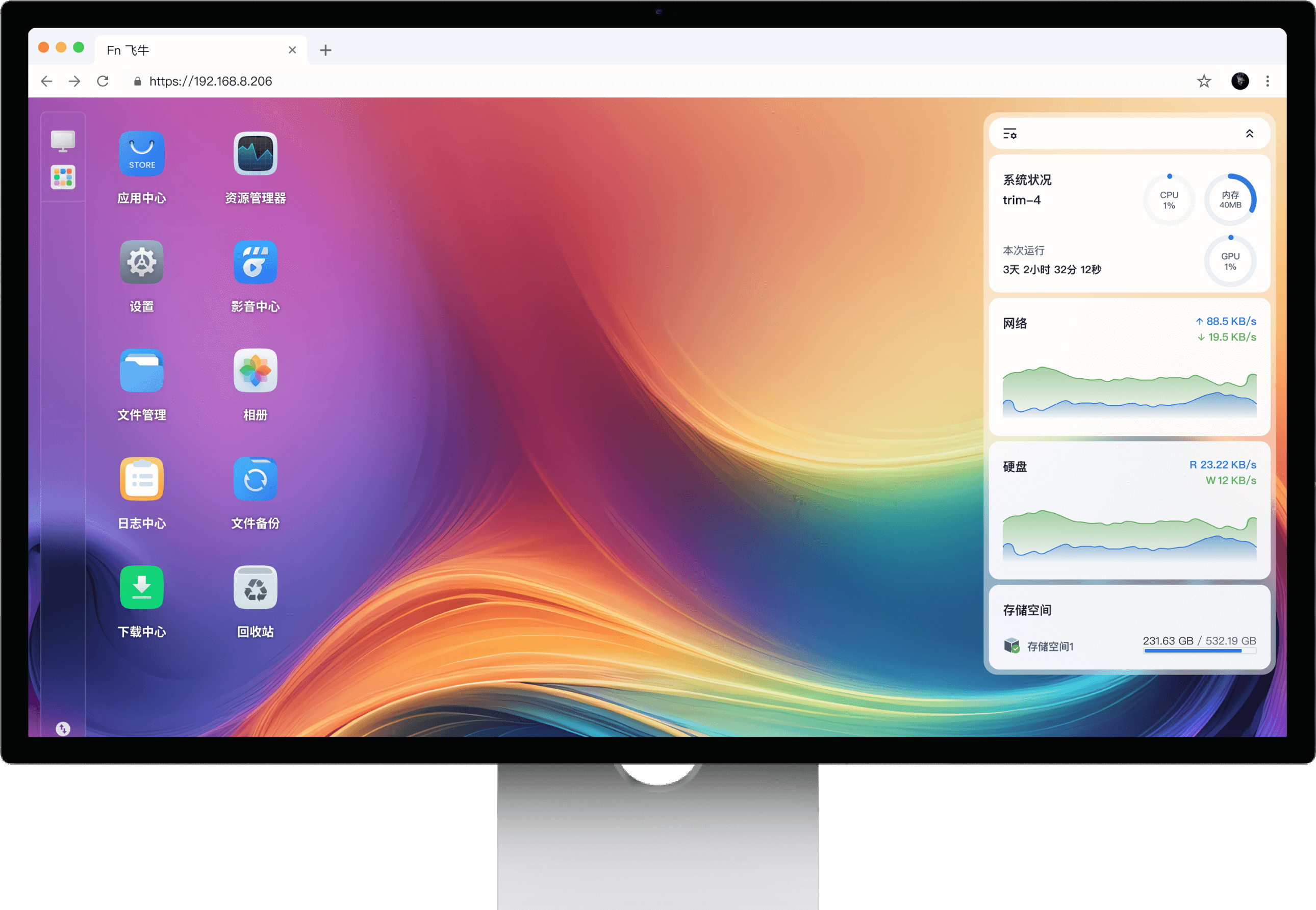
When it first appeared, it drew a lot of attention as a possible alternative to Xpenology-style setups. It’s still fairly popular now, partly because deployment is simpler and the hardware requirements are lighter. That’s why you can find very cheap second-hand mini systems running FnOS, sometimes with no hard drive and not even a fan.
Still, the low hardware requirement is real. The system disk only needs about 8 GB at minimum, so even many cheap VPS plans with 15 GB or 20 GB system disks can install FnOS without trouble.
My own storage VPS has a fixed 15 GB SSD system disk, which is more than enough for the OS, plus a 500 GB HDD for media. The advertised bandwidth is 1000 Mbps shared, which is fine for experimentation.
Before getting into setup details, here’s the short version of my experience so far:
- It really is a lazy person’s helper. As a community-driven NAS system, FnOS has an app center where a lot of common media tools can be installed with one click. Sure, many of these apps aren’t difficult to deploy manually, but convenience matters.
- With this setup, I’ve basically solved anime downloads for myself. A few taps and subscriptions can be handled automatically. I mostly just wait for email notifications telling me whether the offline download succeeded, while still picking my preferred subtitle groups and sources.
- As a home NAS system, FnOS is pretty usable. If you don’t have a public IP, logging into a FnOS account gives you free FN Connect remote access. The bandwidth is roughly 2–4 Mbps, enough for remote management, sending tasks, and transferring small files. Faster relay plans exist, and while they aren’t exactly cheap, they also don’t feel outrageously priced.
- On the other hand, if you do have a public environment—especially a VPS with a business IP and open 80/443—FnOS feels less polished on the networking side. It ships with Nginx, but users can’t really configure it. There’s no built-in SSL certificate management, and no clean way to bind domains to services. For a public VPS, that feels like wasted potential. If you’re on a typical home connection without open 80/443 anyway, this matters less.
So overall, if you don’t really want to do service administration yourself—or you know just enough to be dangerous but would rather not bother—and you already have a decent storage VPS, FnOS is worth trying.
Installing FnOS on a VPS
There’s already a reinstall script that can deploy FnOS quickly.
Repository:
https://github.com/bin456789/reinstall
It’s an open-source project with a good number of stars, which is at least somewhat reassuring. If you still don’t trust it, you could install manually through VNC rescue mode and your own mounted image. I didn’t do that. Partly because I can’t be bothered, and partly because not every provider gives you flexible ISO mounting in the control panel. Yes, you could boot into rescue mode, download the FnOS ISO yourself, and install it that way, but that’s outside what I actually tested.
Downloading the script
If your current system is Linux and already has curl or wget, use one of the following commands.
For overseas servers
curl -O https://raw.githubusercontent.com/bin456789/reinstall/main/reinstall.sh || wget -O ${_##*/} $_
For servers in China
This is the mirror command listed in the project README. In theory, any GitHub acceleration mirror could work, but that’s beyond the scope here.
curl -O https://cnb.cool/bin456789/reinstall/-/git/raw/main/reinstall.sh || wget -O ${_##*/} $_
Running the installer
The actual installation step is straightforward. Replace PASSWORD with the SSH password you want to use, then run:
bash reinstall.sh fnos --password PASSWORD
# --password 参数不是必须的,但是提前设 SSH 密码也不是坏事,反正这里就算不用参数你交互脚本也要设密码。
You should also decide how much of the system disk FnOS will use. I gave it the full 15 GB SSD and kept videos on the 500 GB mechanical disk.
The script downloads what it needs, and once it tells you a reboot is okay, restart the VPS. Deployment will then continue automatically. You can watch progress in the provider’s VNC console. If your provider doesn’t even offer VNC, that’s honestly a bad sign.
First-time setup
Once the VNC console shows the FnOS screen, open:
http://your-vps-ip:5666
That will bring up the web UI for initial setup.
I wrote this after finishing my own install and wasn’t about to wipe and reinstall just for screenshots, but the guided setup is simple enough that you probably won’t need help. After that, you get a fairly polished web desktop.
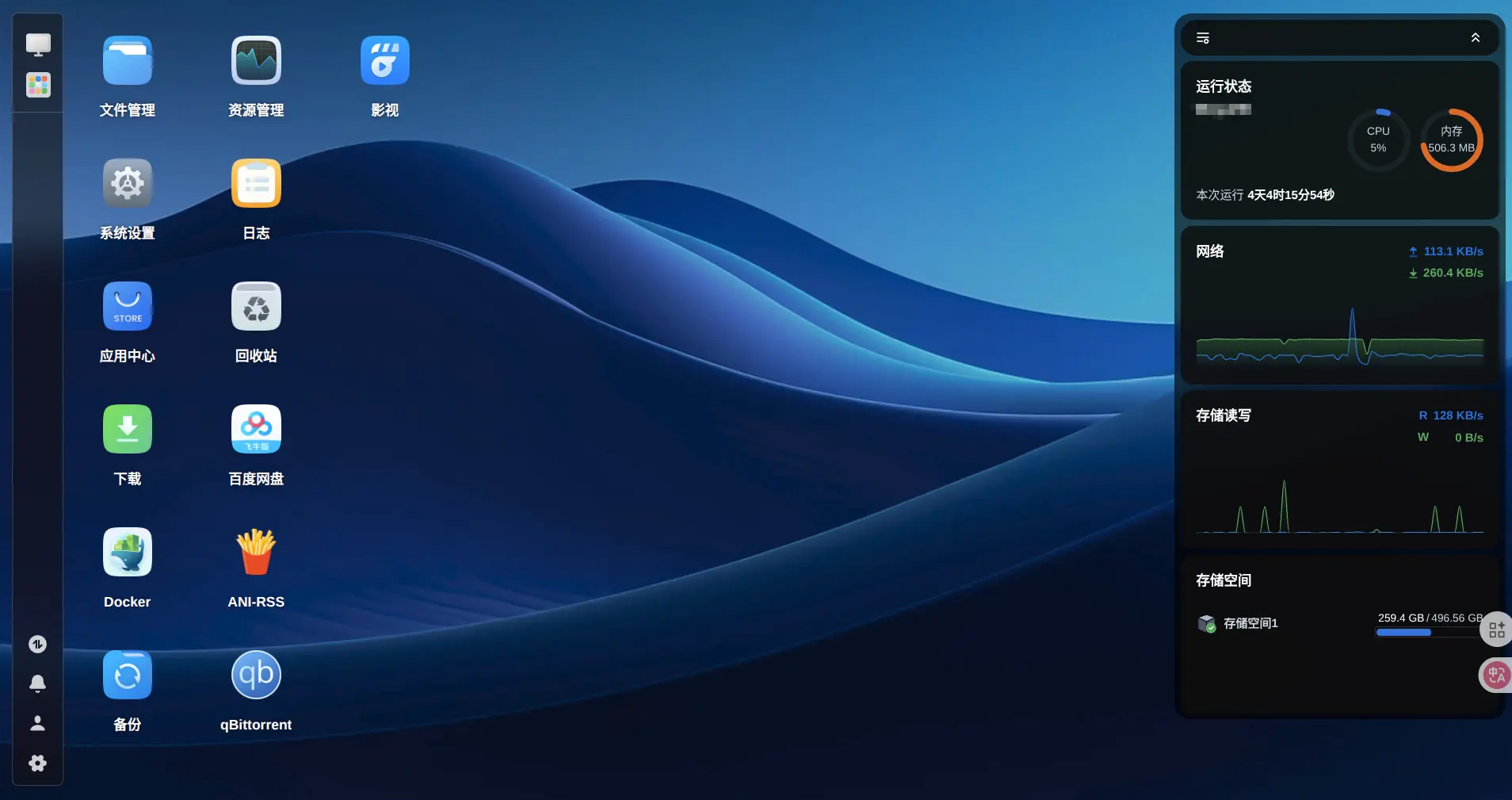
The memory usage in the screenshot looks a little high, but that was after I had been using it for a while, with a bunch of apps installed and downloads running in the background. Right after boot on a fresh install, resource usage is much more reasonable. Even a 1 core / 1 GB machine can scrape by.
There’s a certain “real distribution” feeling to the interface. If this were running on local hardware with an attached display, it would be even better—but in reality, this is a web UI, and tying it to a true desktop environment would obviously require more than 1 core, 1 GB RAM, and an 8 GB disk.
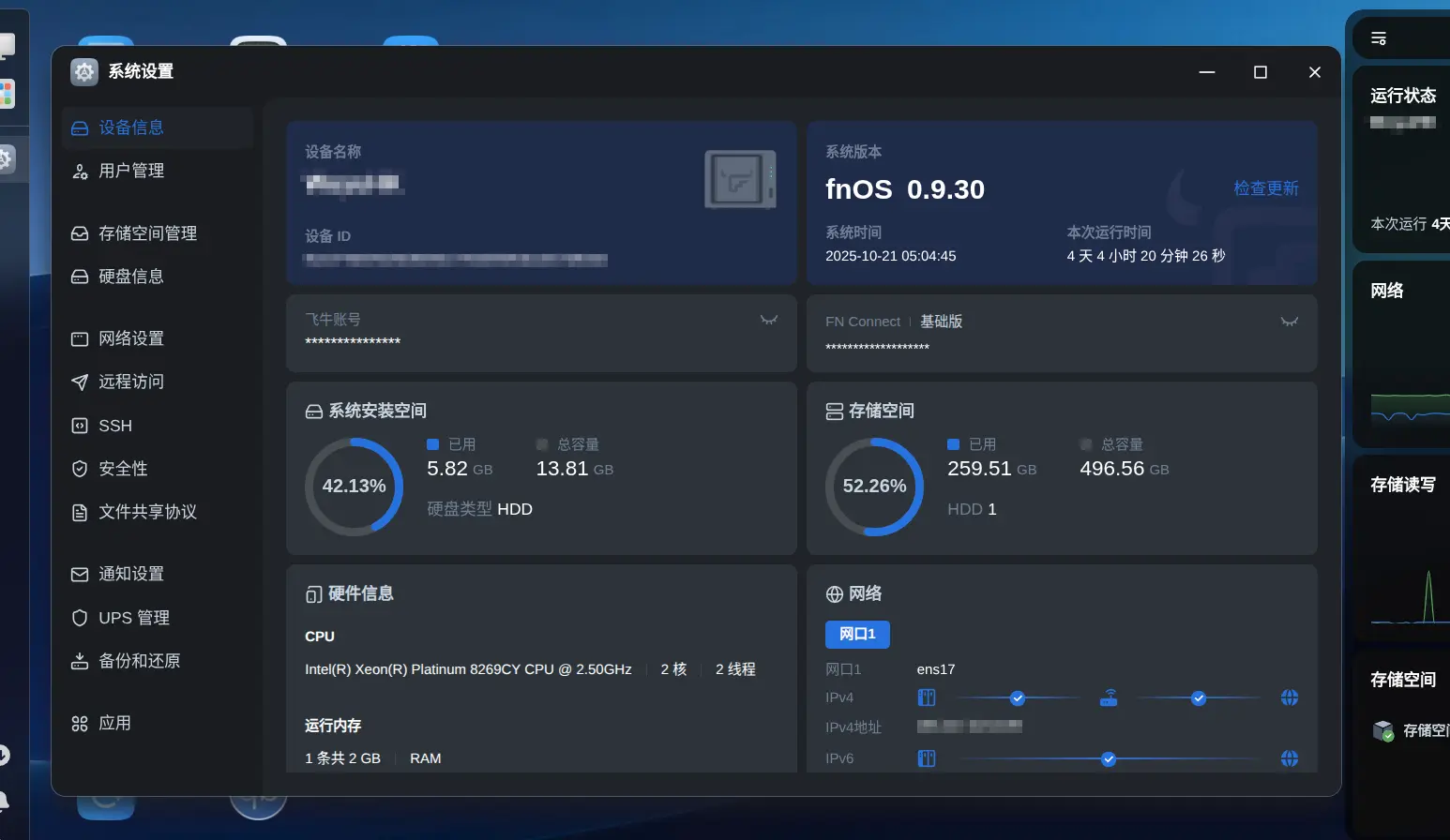
The settings panel is also quite usable. System updates and many common options are manageable through the GUI, which is convenient. Since the base is Debian, the package repositories are Debian repositories too, and you can still use apt through SSH.
Media apps, downloads, and scraping
FnOS is still in beta, but based on installation and day-to-day use, it already feels reasonably usable. My system is running the 0.9 public beta.
For a NAS, one of the most important jobs is obtaining media, scraping metadata, and building a library. FnOS does surprisingly well here.
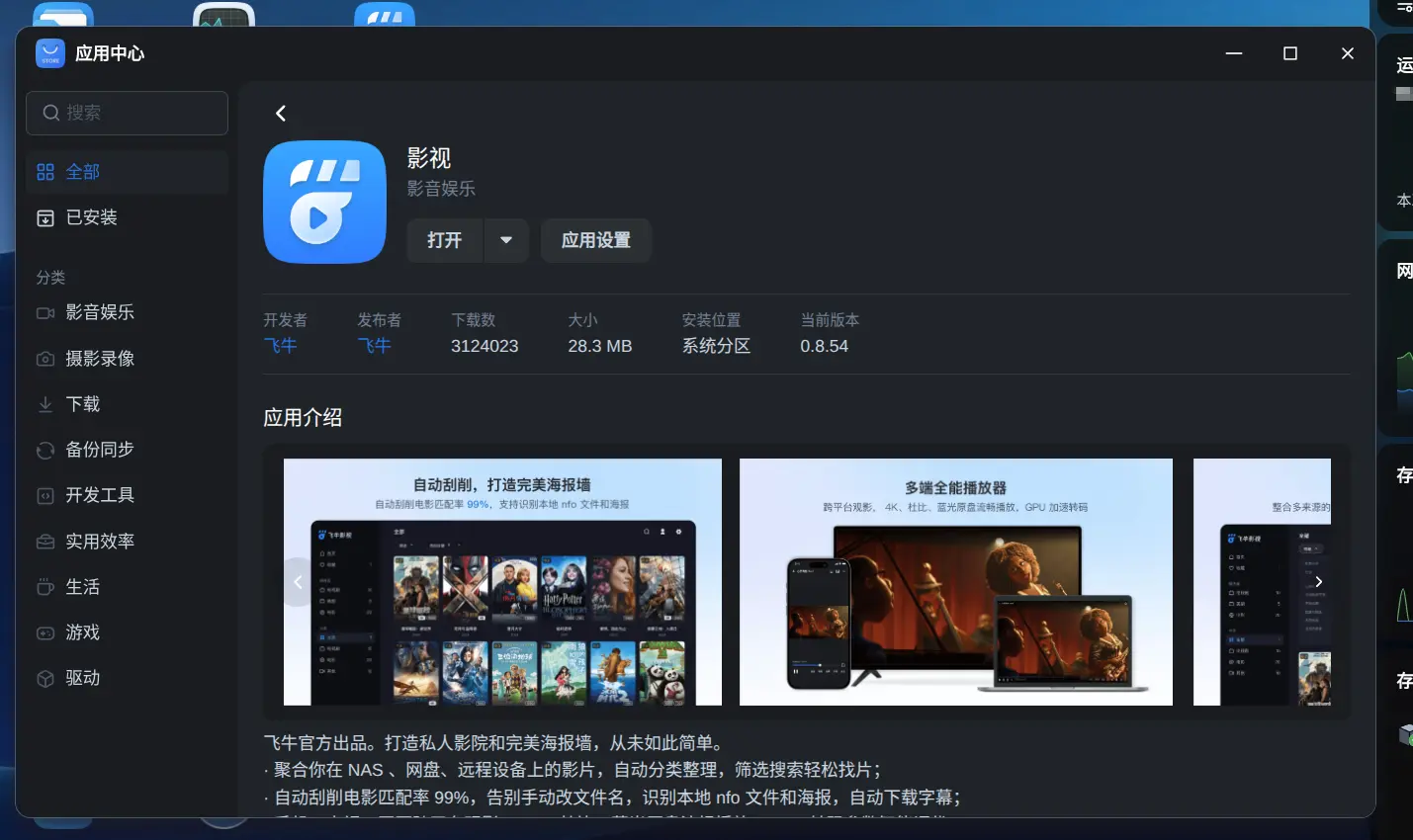
From the app center, you can install the official media app called FnOS Video. This is one of the key reasons to consider FnOS at all. It’s a simple media library app with automatic metadata scraping, and compared with something like Emby or Jellyfin, it’s much more ready to use out of the box.
The official positioning is straightforward: mount NAS storage, mount cloud storage through FnOS file management, automatically organize and categorize files, scrape metadata with claimed high accuracy, manage users, and use the library across phone and TV apps.
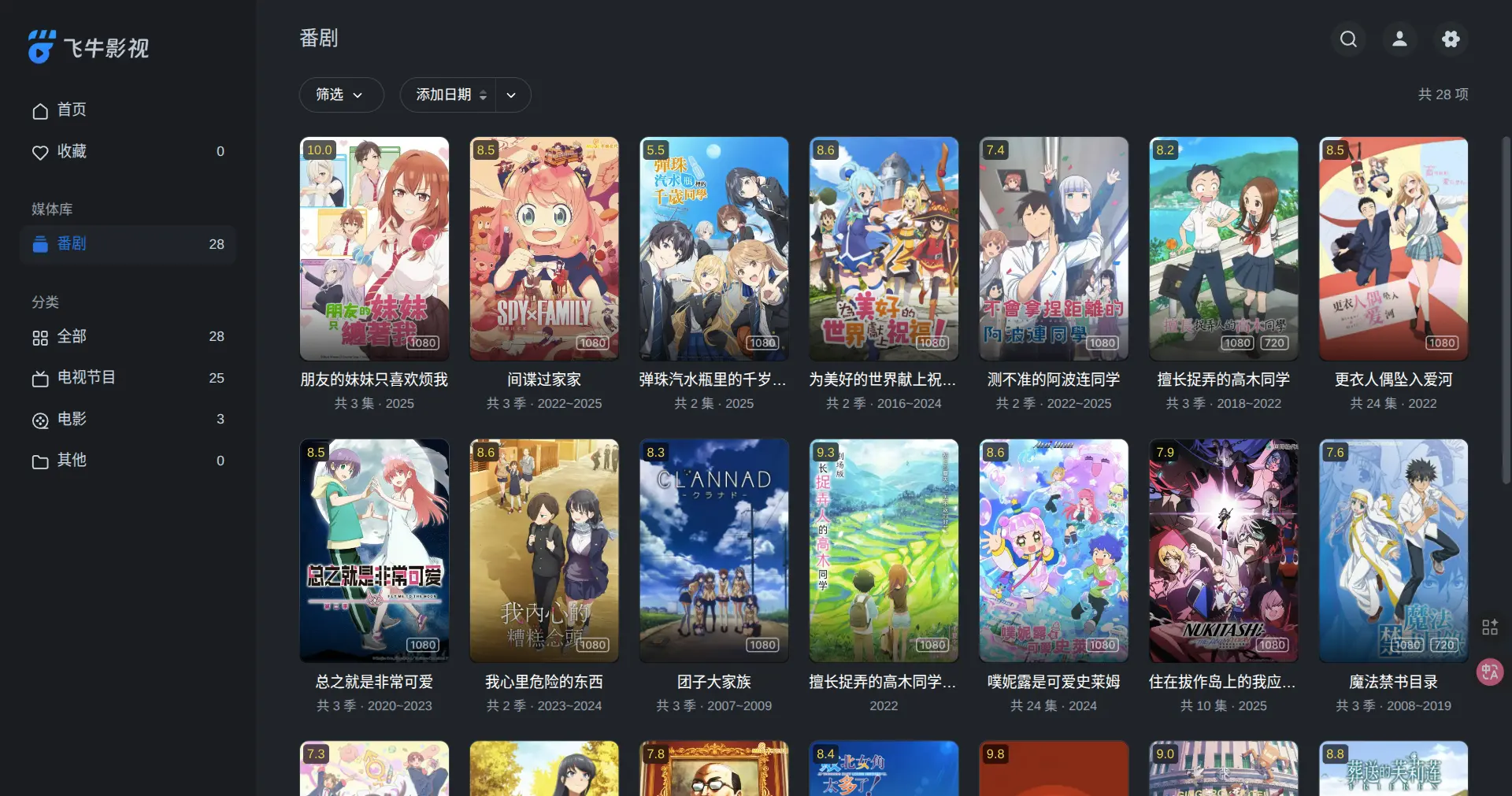
In practice, it’s genuinely decent. The software feels fairly mature, easy to use, and capable of scraping movie and anime metadata from TMDB and IMDb. It can also automatically download and attach subtitles, though online subtitle coverage is much better for live-action content than for anime.
Downloading content
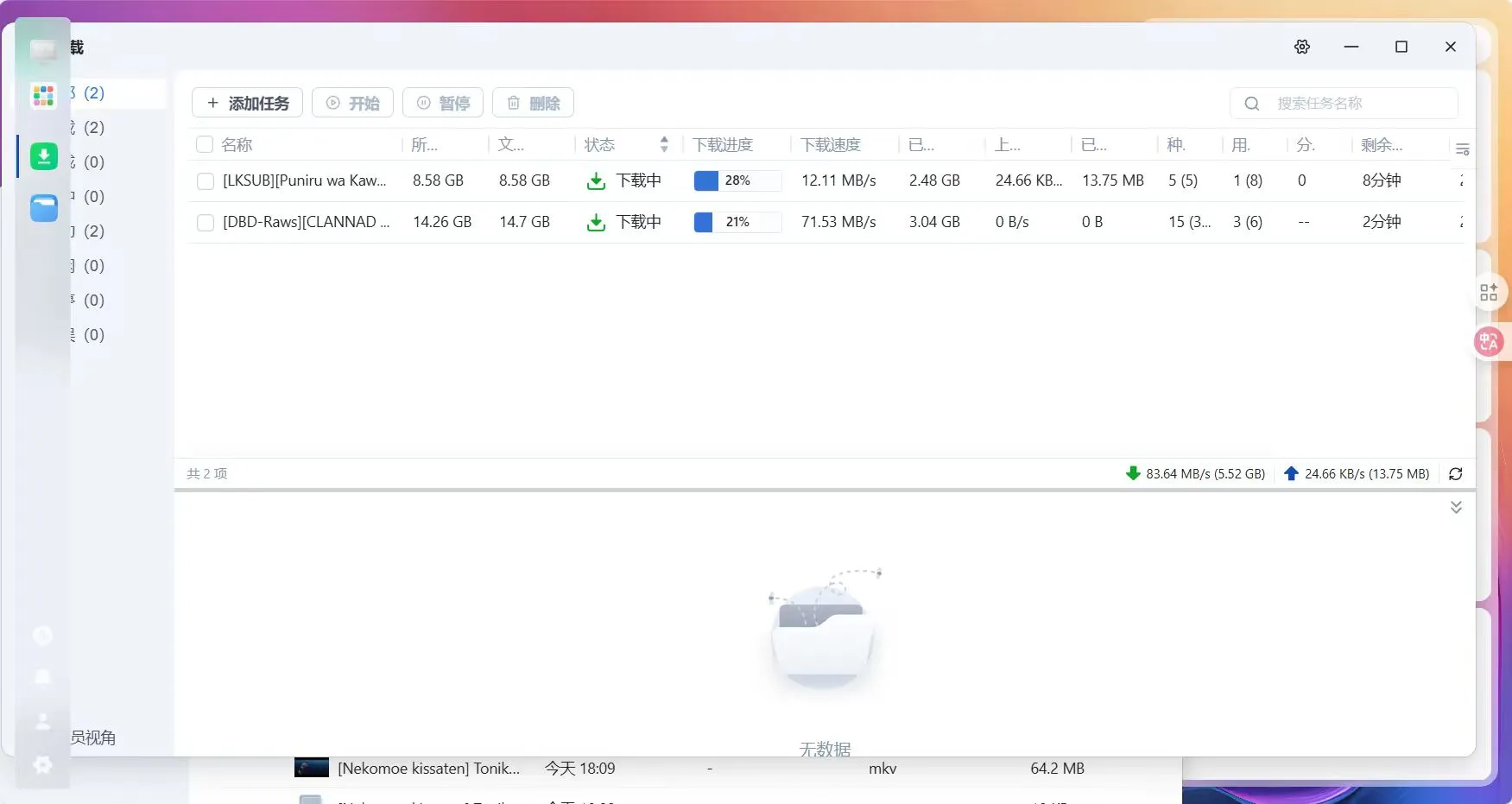
FnOS includes a built-in download manager, which seems to use a qBittorrent-based core. Speeds are fine, but it’s limited. There’s no API support, and many of the settings are stripped down, so if you want external automation or API-based control, you’ll probably still want to install Aria2 or qBittorrent Web yourself.
Fortunately, the app center offers several mainstream download clients. One thing to pay attention to: make sure each app is granted proper read/write access to the directories it needs. FnOS handles permissions fairly strictly. Each app has its own space and sub-user context, and if you don’t configure directory access properly, downloads will often fail with write-permission errors.
If all you want is basic torrent downloading, though, the built-in tool is enough. You can add torrent files or magnet links, upload from the NAS itself, and even use shared links from another FnOS NAS for faster transfer.
Anime subscriptions
For ongoing anime subscriptions, the app center also provides one-click installs for Ani Rss and AutoBangumi, along with various other applications. Again, set directory permissions correctly or you’ll run into unnecessary trouble.
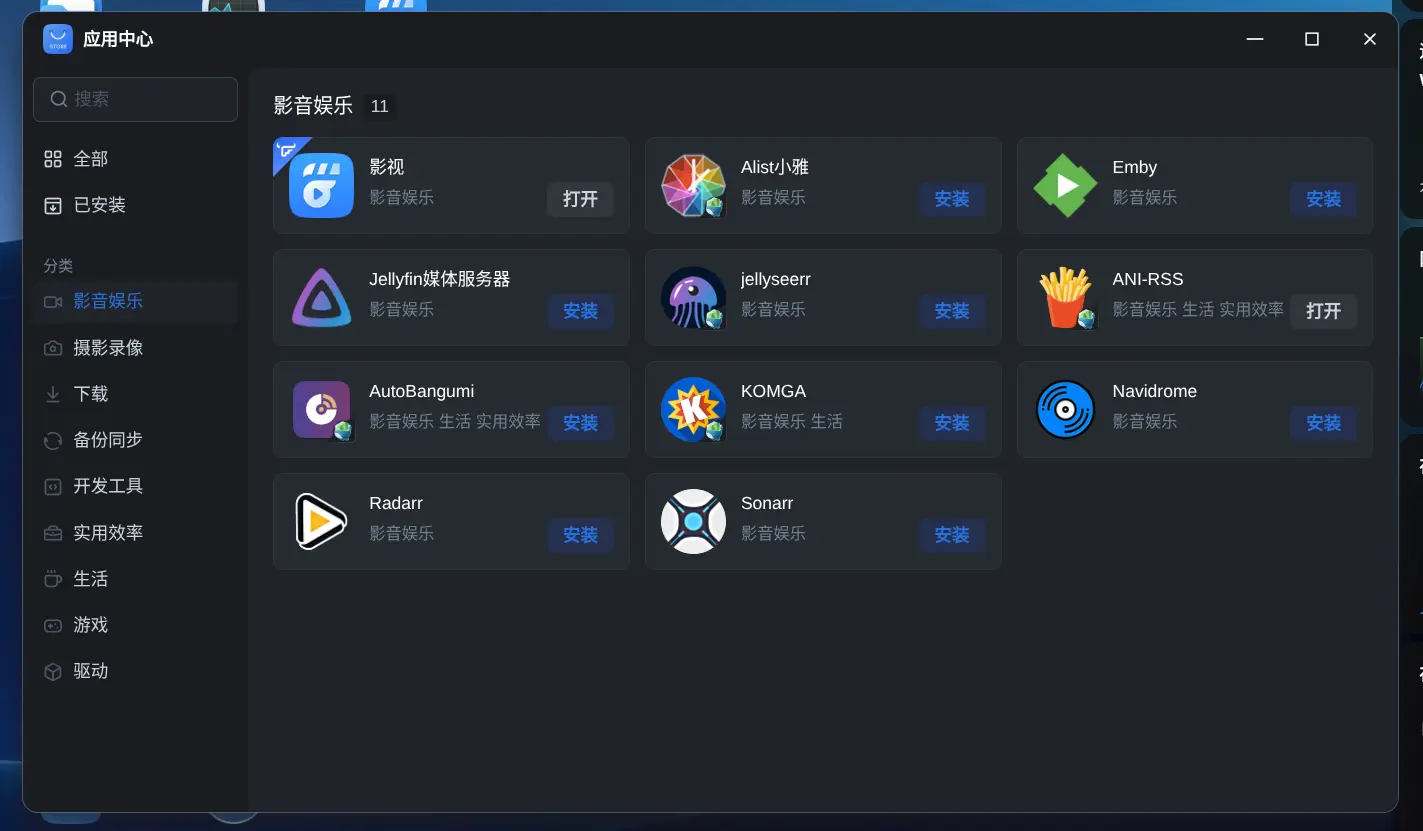
Once installed, third-party apps usually open at http://your-vps-ip:app-port. If you’re using FnConnect, they may be exposed through its dedicated subdomain. Official FnOS apps open inside the desktop interface, while third-party apps typically just open in their own pages.
This is another place where FnOS still feels unfinished. Third-party apps can’t easily bind their own domains, and handling SSL certificates for domains or direct IP access is awkward. That may improve later, but it probably isn’t a top priority since most NAS users don’t have a public IP to begin with.
How good is the media scraping?
For anime, the automatic identification is decent overall, though not perfect. I haven’t tested much with live-action content, so I can’t say too much there. Sometimes you still need to match items manually against TMDB.
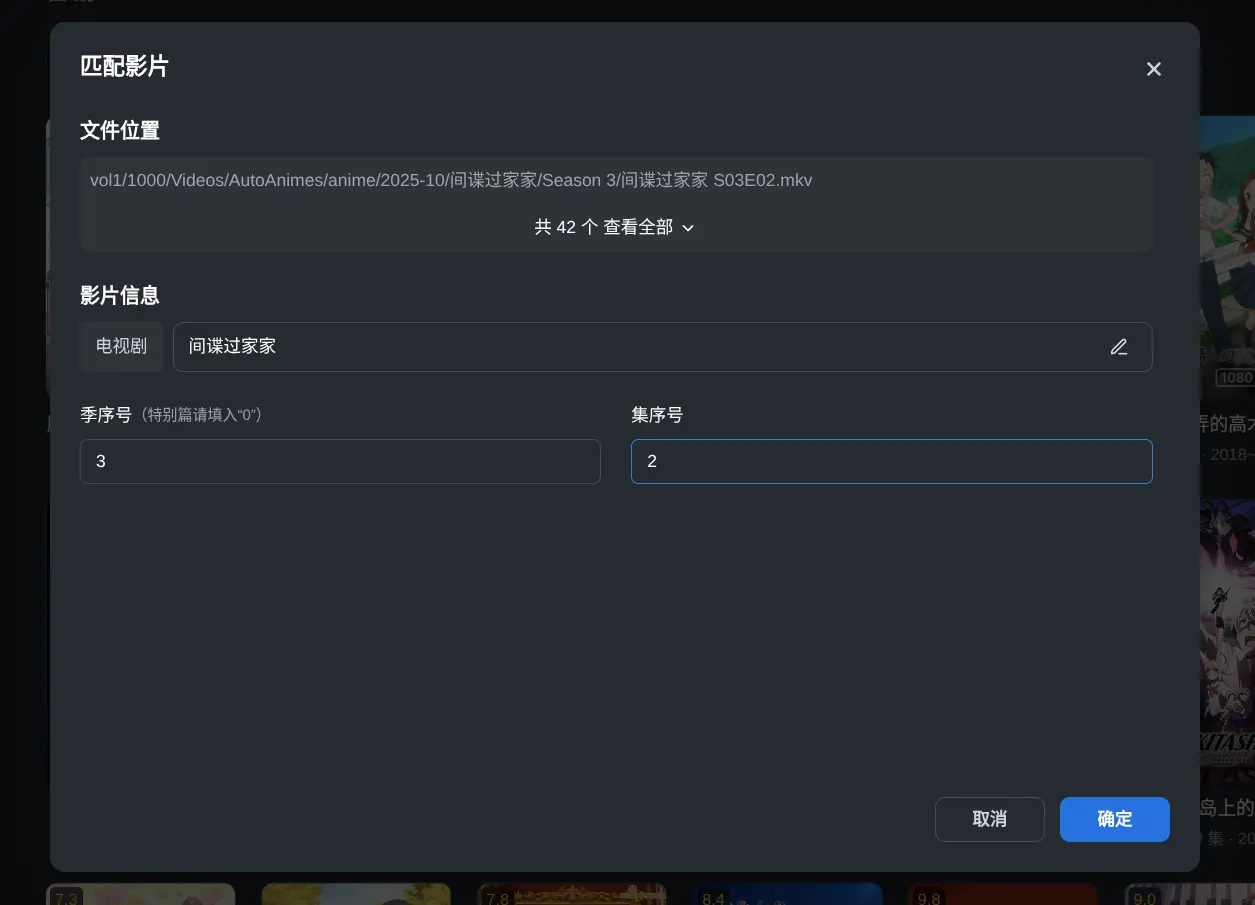
The manual matching page is simple and easy to understand. If you’re familiar with how TMDB organizes titles, seasons, and metadata, it’s very intuitive, and you don’t have to jump elsewhere to search.

Once everything is matched, the result looks clean and polished. The metadata pulled from mature media APIs is comprehensive and attractive. In terms of presentation, it feels good to use—something in the same general category as Emby visually, though simpler.
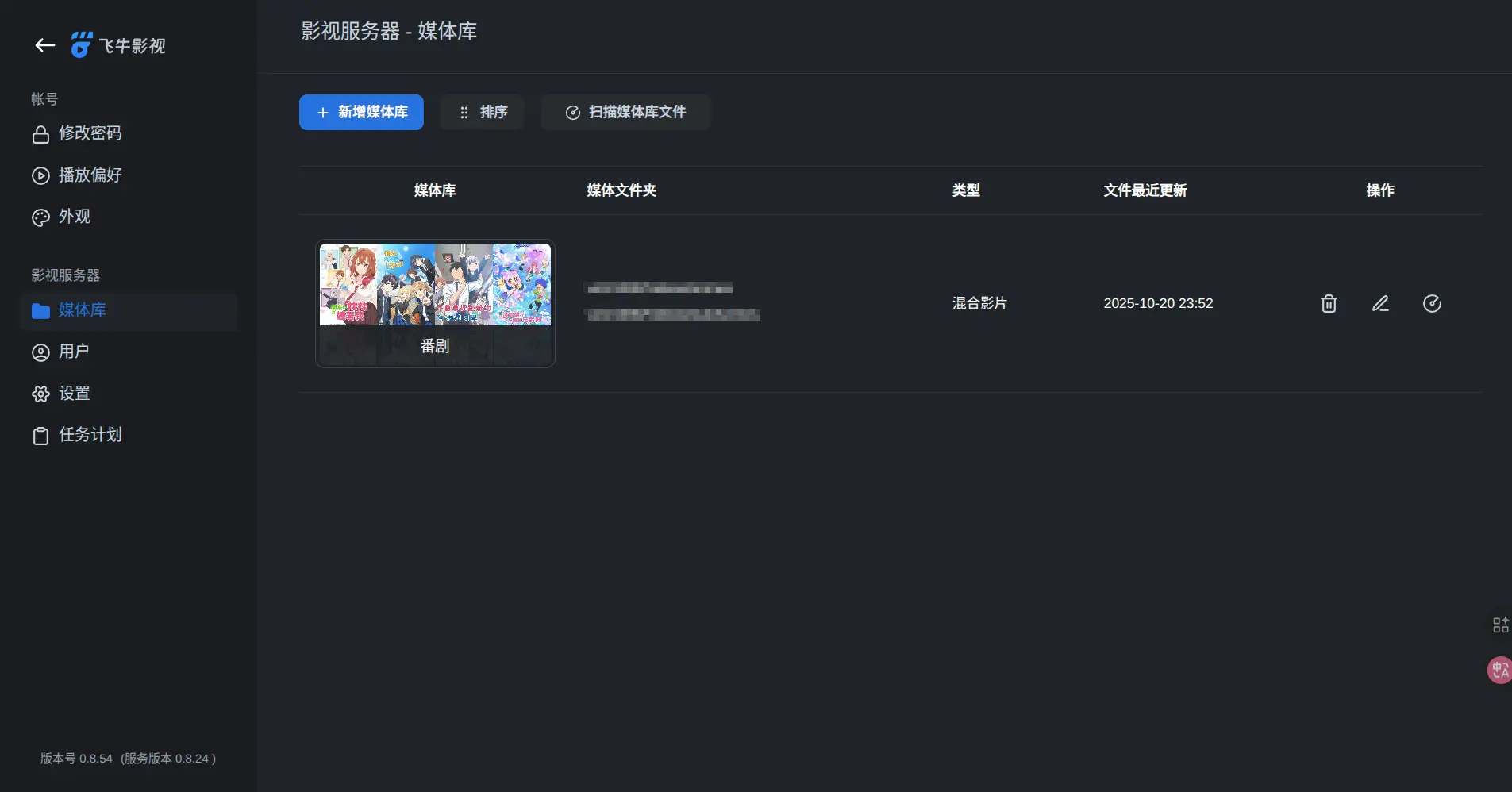
That said, the library settings still aren’t especially deep. If you want advanced customization and a more mature ecosystem, then a dedicated platform like Emby is still the more serious option.
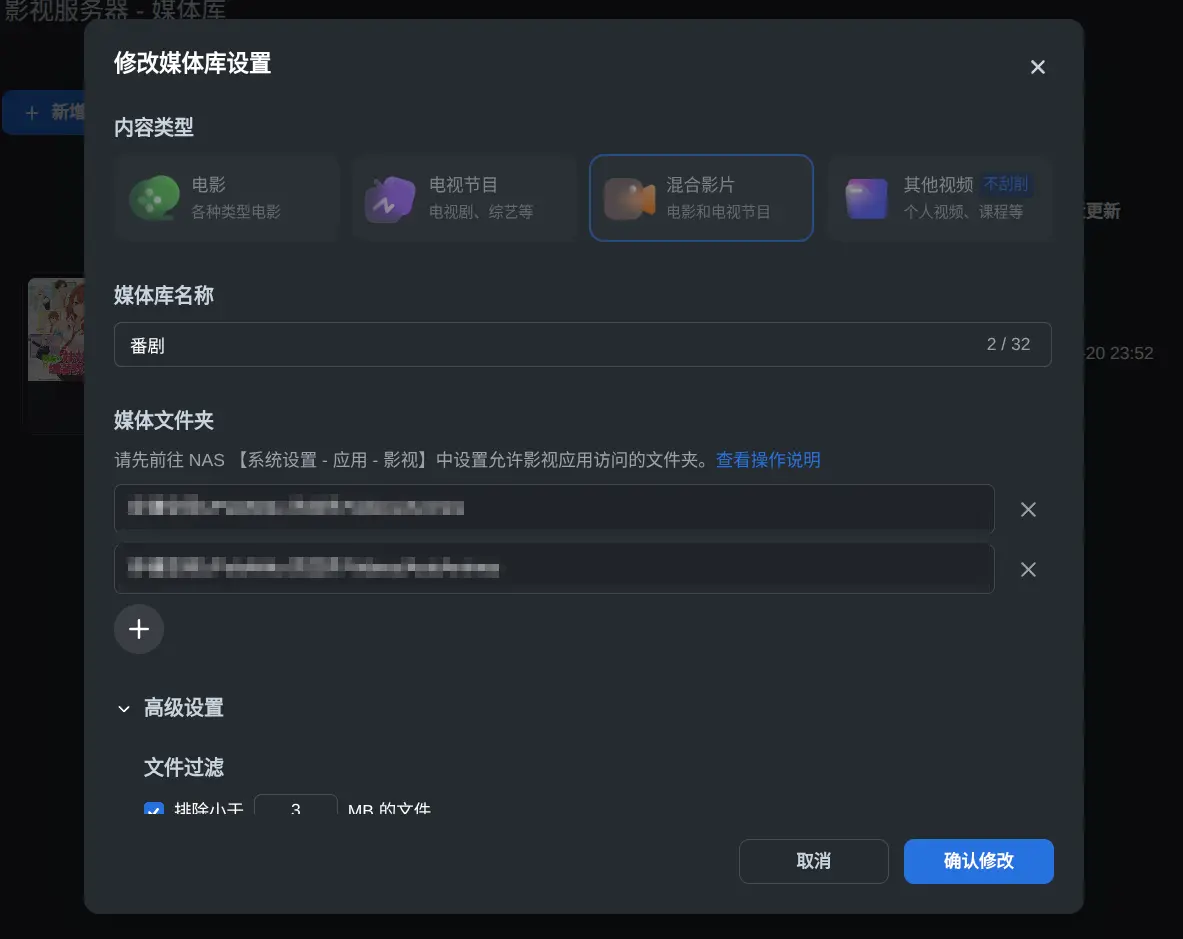
But for a small-scale personal library, what FnOS provides right now is enough.
For daily viewing, you can watch through the web interface on PC, install the mobile app and log in to your NAS there, or use the TV app for living-room playback. Cross-device use is convenient and reasonably smooth.
To be fair, Emby can also do all of this. The difference is that setting it all up manually is a very different level of effort.
Where FnOS works well, and where it doesn’t
At this point, most of my testing has focused on media. I haven’t spent much time yet with some of the other features, like:
- multi-user permission management
- quick external file sharing
- FnOS sync
- photo management
So this isn’t a full review of everything the system can do.
What I can say is this: if your main goal is turning a cheap storage VPS into something NAS-like for media downloads and streaming, FnOS is a pretty comfortable shortcut. It reduces manual setup, gives you a decent app ecosystem, and makes common tasks much easier than building the whole stack yourself.
Its weaknesses are mostly around public-network flexibility, domain and certificate handling, and the rough edges that still show up in third-party app integration. But if your priority is convenience rather than perfect infrastructure control, those tradeoffs may be acceptable.