Use an RTSP Security Camera as a Video Meeting Camera with OBS
A dedicated video-conferencing system can become inconvenient once its service subscription ends, especially when the hardware needs to be removed and meetings have to move to online platforms such as Feishu or DingTalk. Buying another professional conference camera may also be unnecessarily expensive.
A practical alternative is to feed the video stream from an IP camera or network video recorder into the meeting software. The setup relies on the camera’s RTSP stream and OBS Studio’s virtual camera feature.
Set up the camera feed in OBS
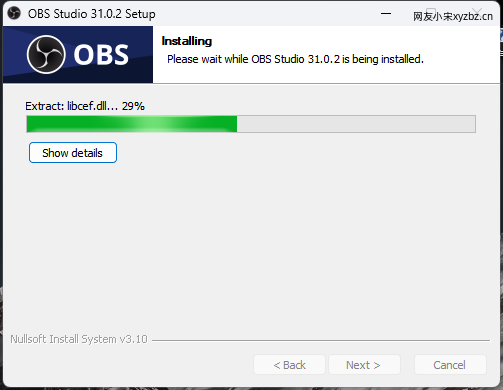
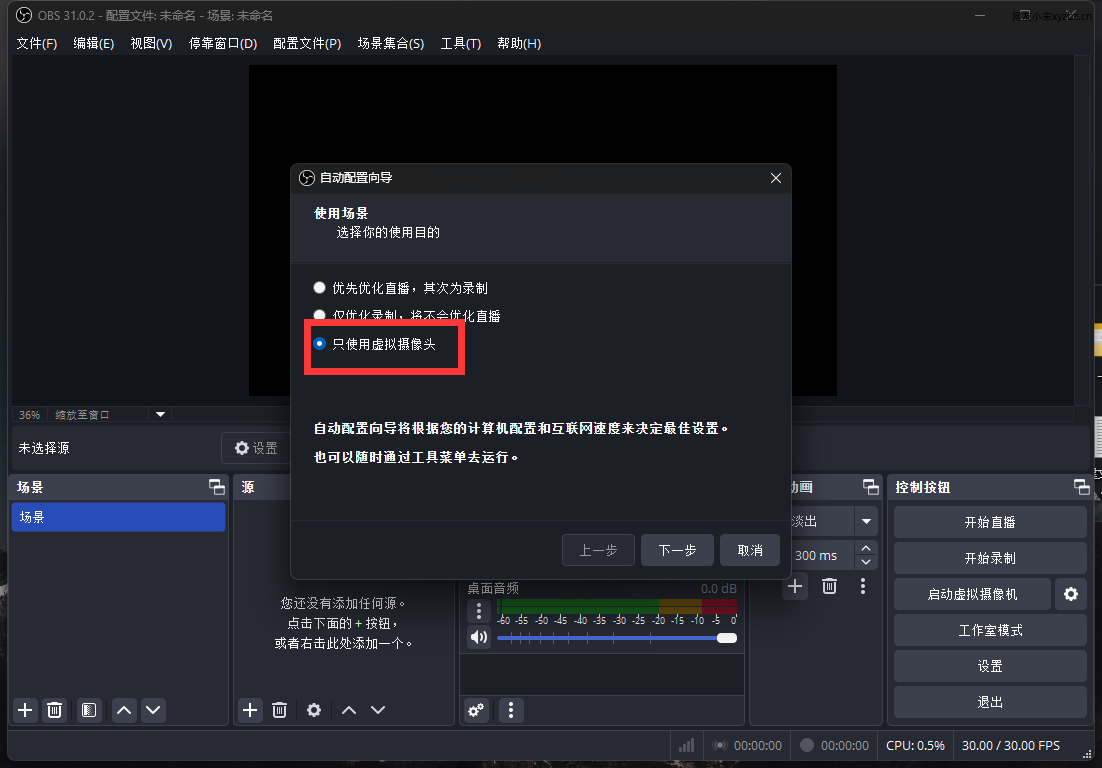
Install OBS Studio using the default installation options. After launching it, choose the option to use OBS only as a virtual camera if that is the sole purpose of the setup.
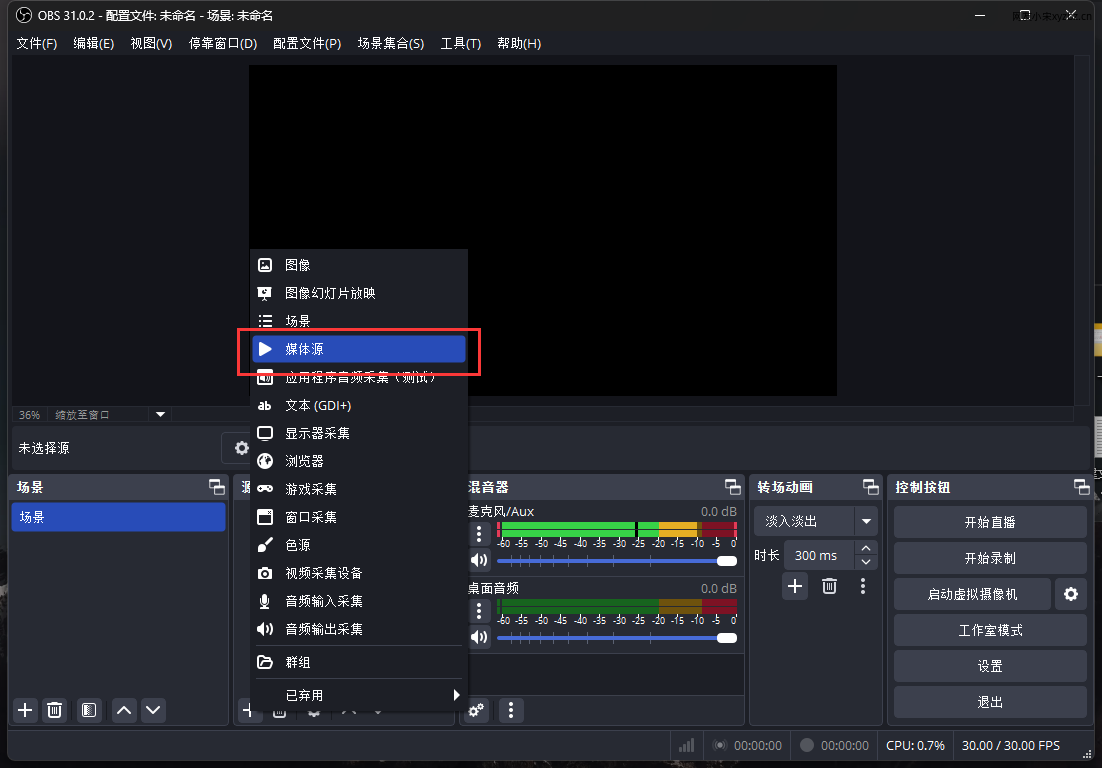
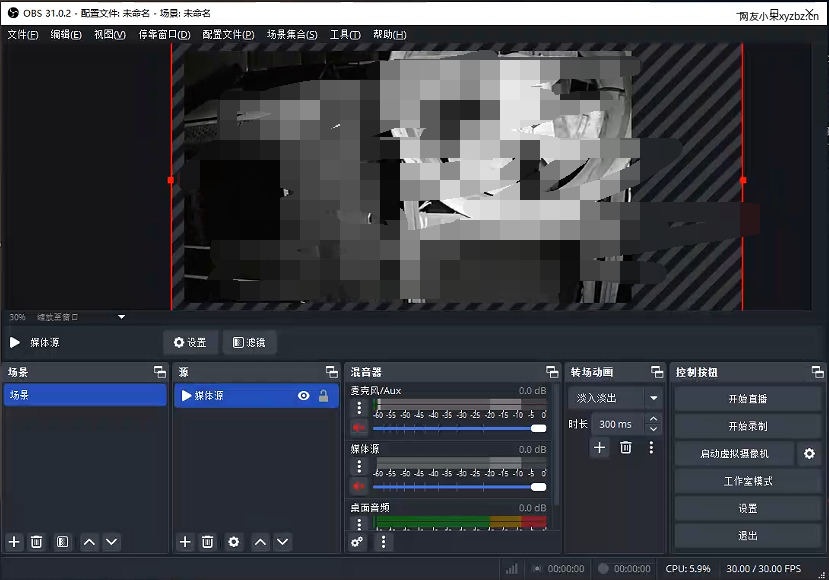
Create a new media source in OBS.
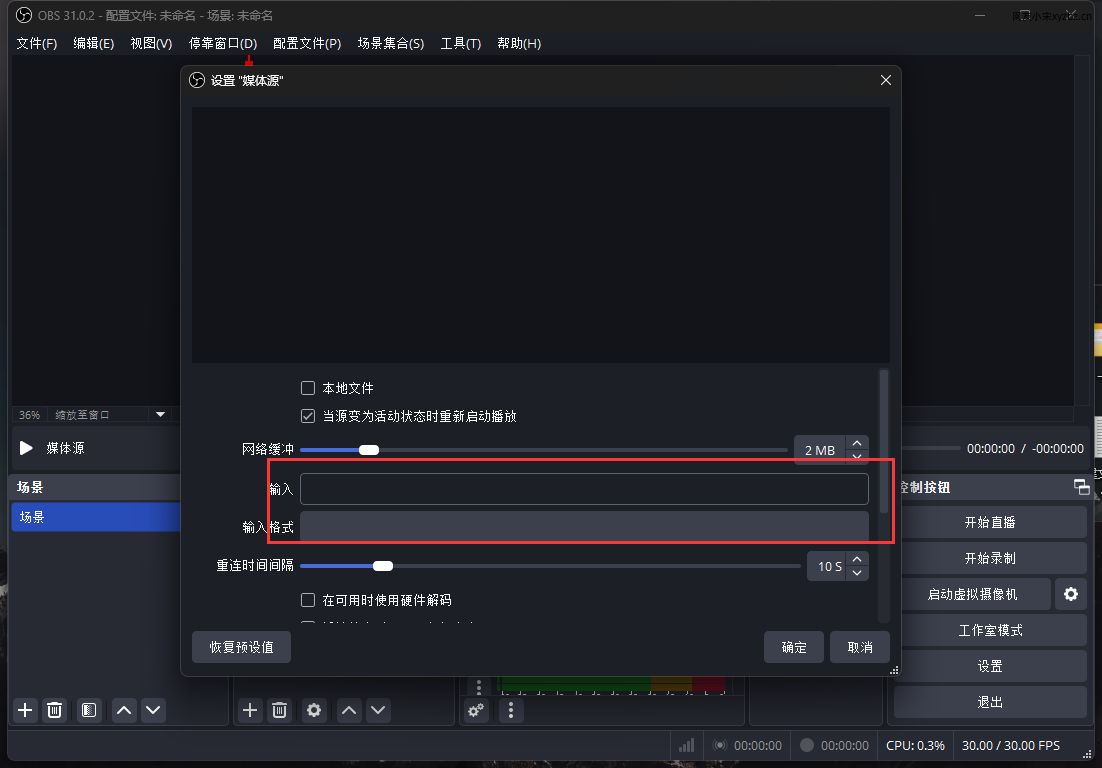
In the media source settings, clear the option that uses a local file. Then enter the camera’s complete RTSP address in the Input field and confirm the settings.
The exact RTSP address varies between camera and recorder brands. It usually needs to be looked up according to the specific device model.
Once the stream appears, adjust its size and position in the preview as needed. Then click Enable Virtual Camera in the lower-right corner of OBS. OBS will create a virtual webcam based on the selected monitoring feed.
After that, open Feishu, DingTalk, or another application that can access a camera. The device list should include a camera whose name begins with OBS. Select it, and the meeting application will receive the security camera’s video feed instead of a conventional webcam image.
If audio is also needed, a separate microphone can be connected and selected as the meeting application’s input device.
OBS can be used for much more than this basic camera relay. Its virtual-camera and scene features also support more elaborate video effects and live-production workflows, so users with additional needs can explore those functions further.