Using Custom Chinese Fonts in Obsidian’s Excalidraw Plugin
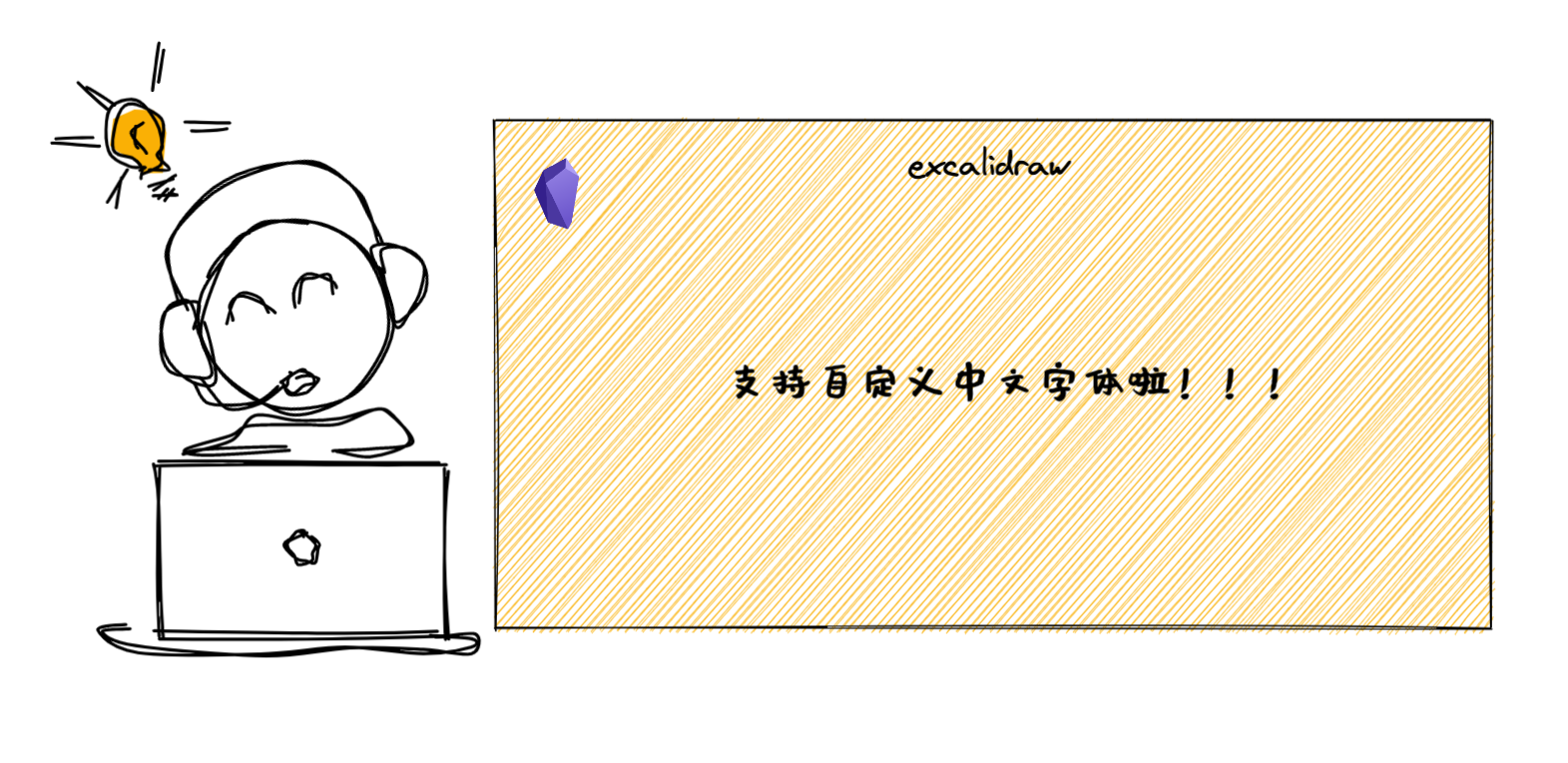
A long-awaited font update
Excalidraw for Obsidian is already a powerful free plugin for creating hand-drawn-style diagrams. One important update makes it much more useful for Chinese writing: it now supports custom Chinese fonts. More precisely, it supports custom fonts in general, instead of being limited to English fonts as before.
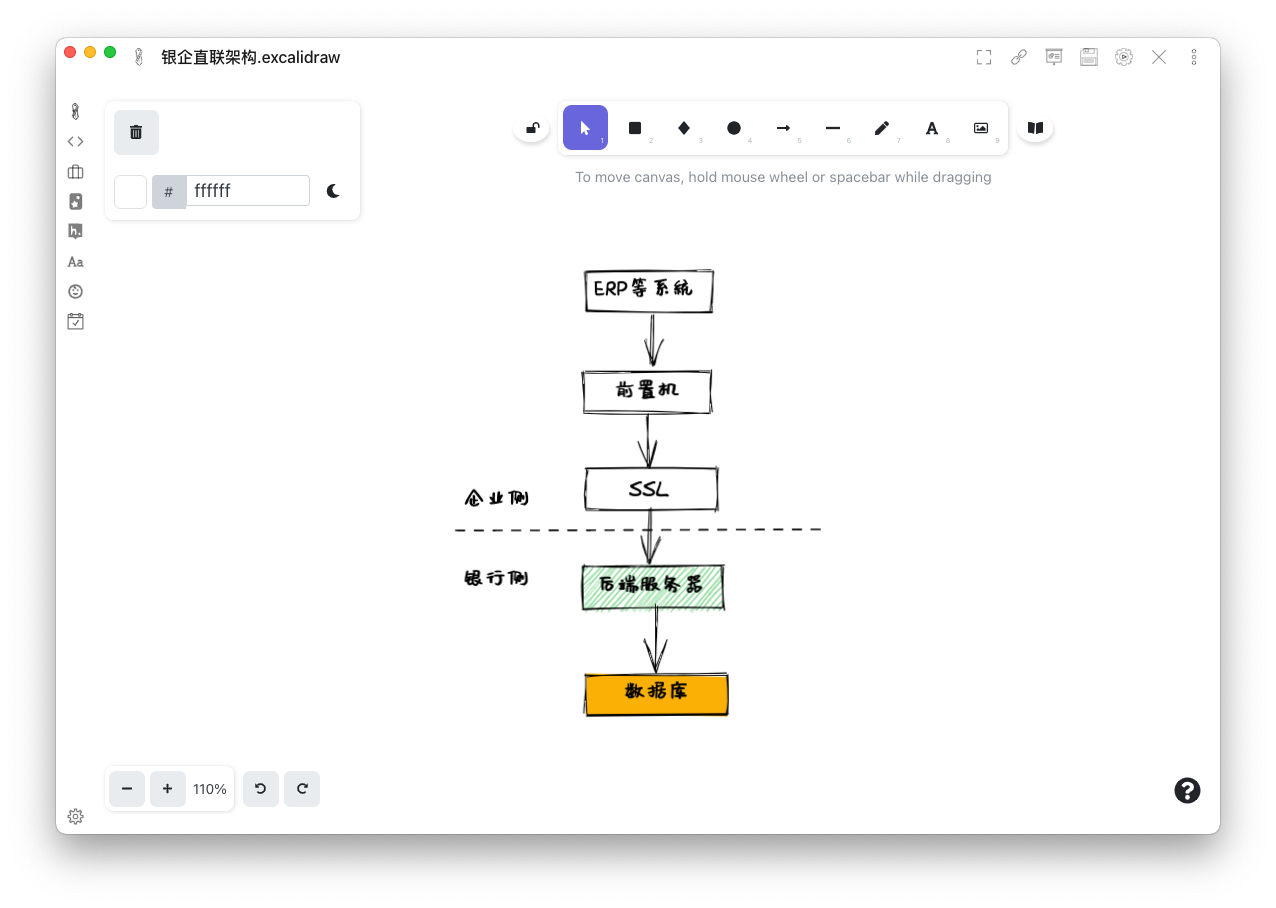
With a suitable handwriting-style Chinese font, text in Excalidraw can finally look consistent with the plugin’s default sketch-like visual style.
How to set it up
The setup is straightforward.
First, download a font. After comparing several handwritten Chinese fonts, I chose Muyao Soft Brush Handwriting because it matches the feel of Excalidraw’s default English handwritten font quite well. The font is free and properly licensed. Its designer, Chunyan Qiuse, named it “Muyao” after the pinyin of his daughter’s name, as July happened to be her first birthday month. The Latin-letter name also helps with compatibility across different software. Since it was written with a soft brush pen, the full Chinese name is “沐瑶软笔手写体”.
Next, place the font file anywhere inside your Obsidian vault. In my setup, I put it under a dedicated font folder:
.
├── attachment
│   └── excalidraw
│       ├── font
│       ├── media
│       └── scripts
├── blog
└── pages
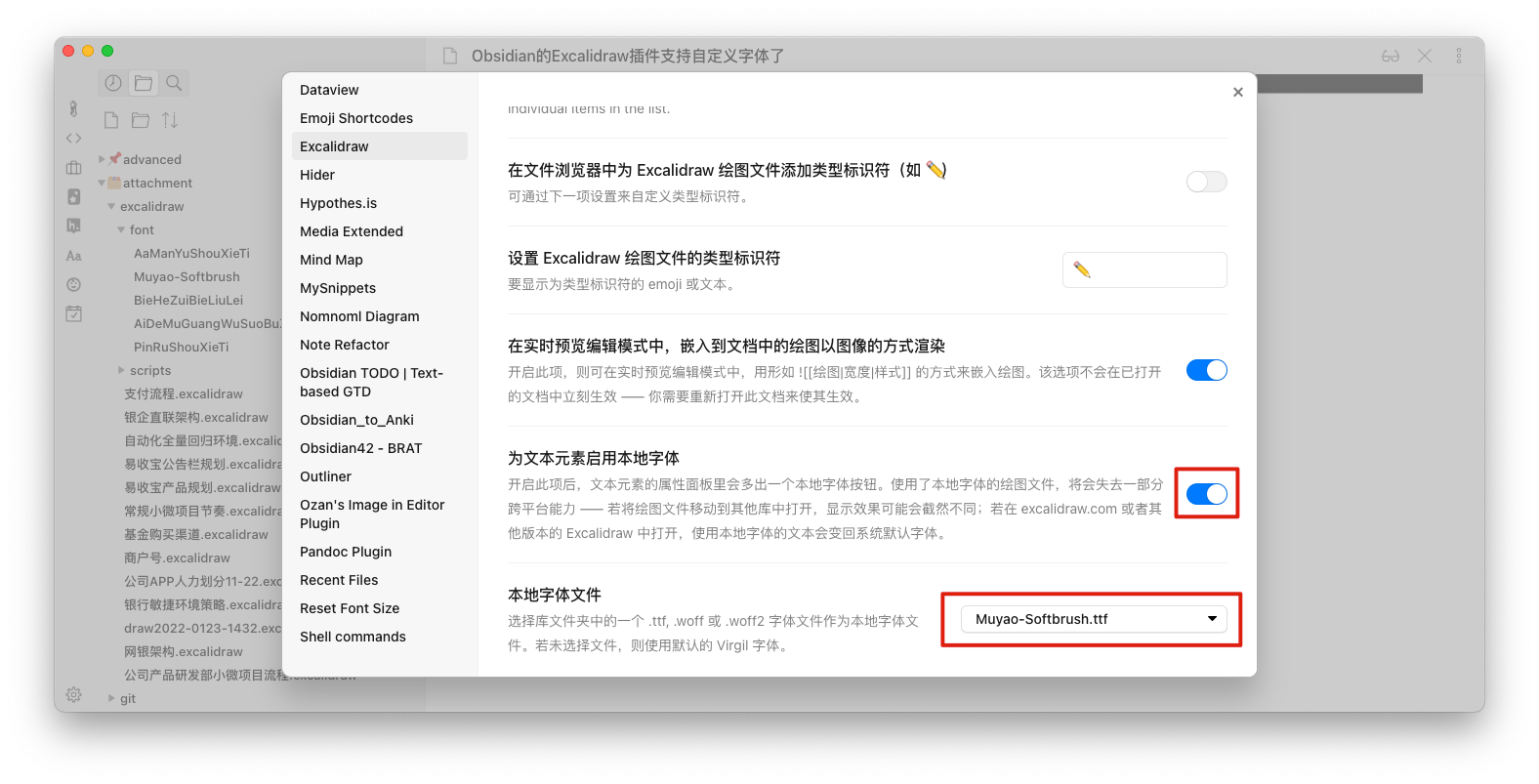
Then open the Excalidraw plugin settings, enable the option for using local fonts for text elements, and select the font file you added.
Finally, when drawing in Excalidraw, choose the custom font from the font options on the left. It is the fourth option in the text style selector.
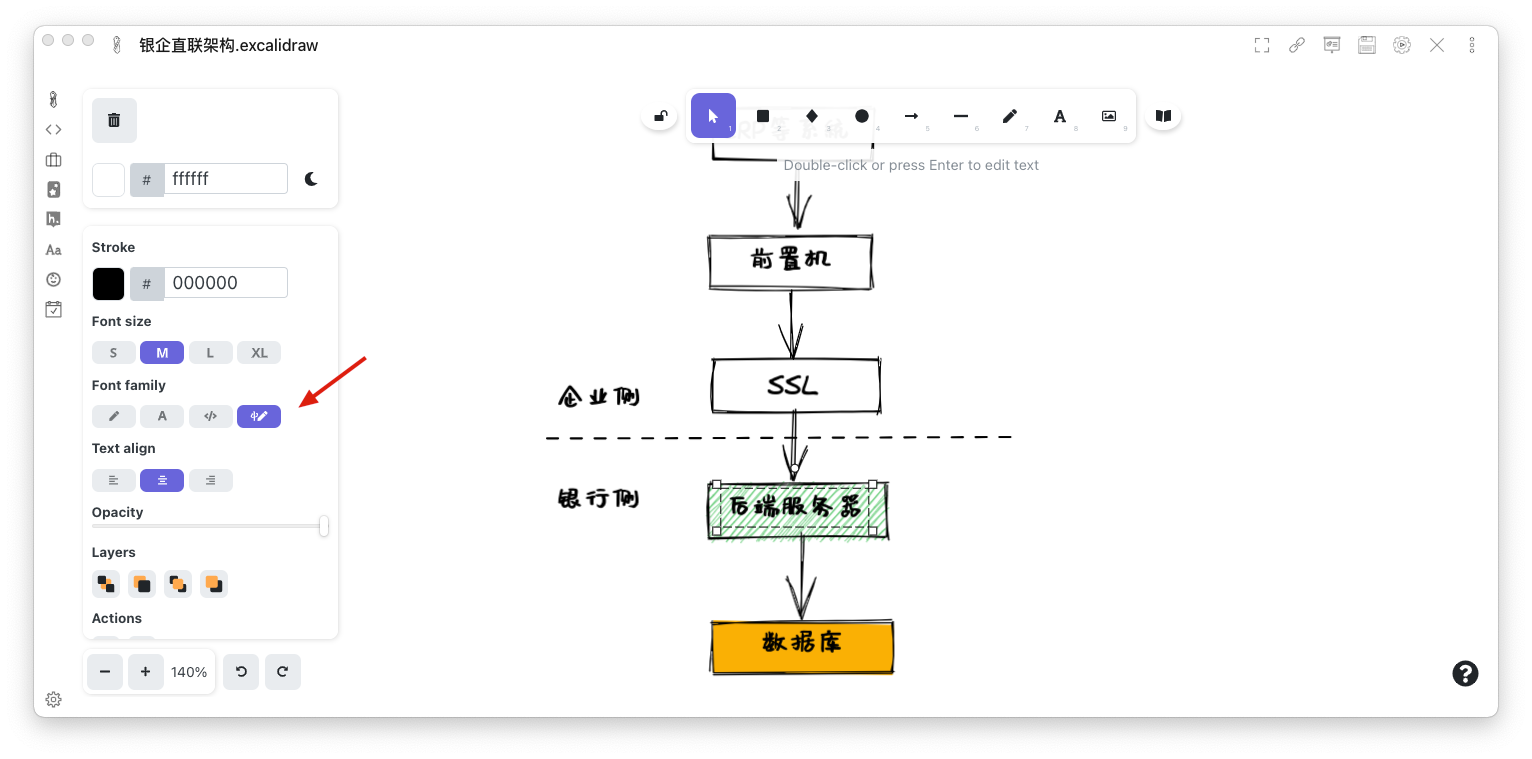
After that, Chinese text in Excalidraw should render with the handwriting font you selected.