Installing IntelliJ IDEA 2020.3.3 Legally on Windows or macOS
Tested environment: Windows 10 64-bit
Software version: IntelliJ IDEA 2020.3.3
Download IntelliJ IDEA
The official download page for IntelliJ IDEA is:
https://www.jetbrains.com/idea/download/#section=windows
JetBrains provides different editions and installers depending on the operating system. Choose the version that matches your platform, then follow the normal installation process for Windows or macOS.
Start with the free evaluation
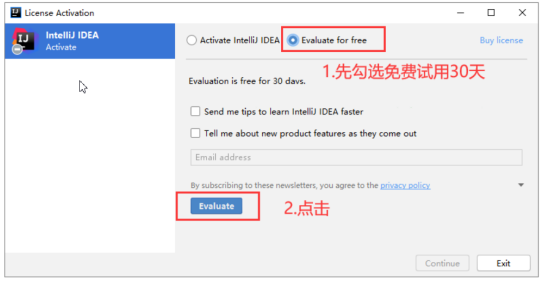
After installation, launch IntelliJ IDEA. If the product has not been activated yet, the registration window will appear.
To try the IDE before purchasing a license, select the free evaluation option:
Evaluate for free
Then click:
Evaluate
This will open IntelliJ IDEA in trial mode, allowing you to use the IDE during the official evaluation period.
Activating with a legitimate license
If you already have a JetBrains license, activate the IDE through the built-in registration window. Depending on the license type, you may be able to sign in with a JetBrains Account or enter an activation code provided by JetBrains.
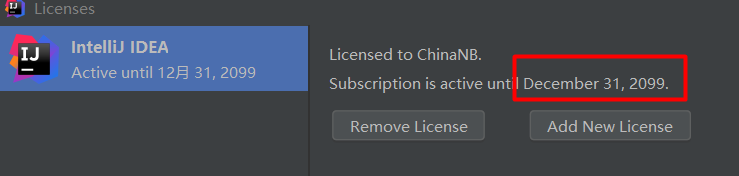
You can check the activation status from the product’s license or registration section after activation.
Legal options for continued use
For commercial use, purchase an official license from JetBrains:
https://www.jetbrains.com/idea/buy/
Students and teachers may be eligible to apply for free educational access:
https://www.jetbrains.com/community/education/#students
Startups may qualify for discounted pricing through JetBrains’ startup program:
https://www.jetbrains.com/shop/eform/startup
Using the official license channels is the safest way to keep IntelliJ IDEA updated and avoid problems with account security, product stability, or license compliance.